Flash has been a boon to the web and the bane of my work as a web standards advocate. Now defunct, it is great that people work on converting old content. I’ve been talking to Rob Bateman about his work on converting Flash games to run on today’s web in an edition of Coffee With Developers.
I met Rob again at Halfstack in London and if you are interested in more details about the work he is doing, his “An Emulator’s journey” is also available on YouTube:
Posted in General | Comments Off on Rob Bateman and his journey to resurrect Flash content on today’s web
I just finished another puzzle for the CODE100 competition and thought I make it Santa themed. Imagine Santa cocking things up by dropping his presents everywhere but inside the chimney. Can you find out which ones hit, which ones landed on the chimney and which ones dropped outside of it?
You get points in a coordinate system that are the drop points of presents and you should sort them into different arrays: those that landed in the chimney, those that landed outside and those that landed on the chimney.
You get the a JSON dataset of a coordinate system with a certain height and with and a circle in its centre with a radius of 75 pixels that is 10 pixels wide.
The `droppoints` array contains the coordinates of the dropped presents, and your task is to sort them into different arrays. Copy all points that are inside the circle into the `innerPoints` array, all the ones outside the circle into the `outerPoints` array and all that landed on the chimney into the `onChimneyPoints` array. Store the size of each of the arrays in `inside`, `outside` and `chimnney` and return all of them as a JSON object.
The other day I got an email from somebody who took one of my developer tools courses and he said he found a website that cannot be debugged. So I looked, found a nasty script and show you how to work around that one. You can watch the video on YouTube or read on…
I was intrigued and asked if I can see the web site. Turns out it’s one of those, let’s say a website with lots of videos, not necessarily all of it safe for work and not necessarily all of it legal. I went into my private browsing mode, turned on my VPN and took a look in Firefox what’s going on there.
I looked at the sources and I found a script that’s actually pretty good in trying to prevent you from using the developer tools. So let’s take a look at what it does and how we can work around it. I un-minified and documented the script and what it does are some really nasty things. You can check it on GitHub and also try the demo page yourself.
var tryCount =0;var minimalUserResponseInMiliseconds =200;function check(){
console.clear();
before =newDate().getTime();debugger;
after =newDate().getTime();if(after - before > minimalUserResponseInMiliseconds){
document.write(" Dont open Developer Tools. ");
self.location.replace(
window.location.protocol+ window.location.href.substring(
window.location.protocol.length));}else{
before =null;
after =null;delete before;delete after;}
setTimeout(check,100);}
check();
window.onload=function(){
document.addEventListener("contextmenu",function(e){
e.preventDefault();},false);
document.addEventListener("keydown",function(e){// Ctrl+Shift+I if(e.ctrlKey&& e.shiftKey&& e.keyCode==73){
disabledEvent(e);}// Ctrl+Shift+J if(e.ctrlKey&& e.shiftKey&& e.keyCode==74){
disabledEvent(e);}// Ctrl+S if(e.keyCode==83&&(navigator.platform.match("Mac")? e.metaKey: e.ctrlKey)){
disabledEvent(e);}// Ctrl + U if(e.ctrlKey&& e.keyCode==85){
disabledEvent(e);}// F12if(event.keyCode==123){
disabledEvent(e);}},false);function disabledEvent(e){if(e.stopPropagation){
e.stopPropagation();}elseif(window.event){
window.event.cancelBubble=true;}
e.preventDefault();returnfalse;}};
var tryCount = 0;
var minimalUserResponseInMiliseconds = 200;
function check() {
    console.clear();
    before = new Date().getTime();
    debugger;
    after = new Date().getTime();
    if (after - before > minimalUserResponseInMiliseconds) {
        document.write(" Dont open Developer Tools. ");
        self.location.replace(
            window.location.protocol + window.location.href.substring(
                window.location.protocol.length
            )
        );
    } else {
        before = null;
        after = null;
        delete before;
        delete after;
    }
    setTimeout(check, 100);
}
check();
window.onload = function () {
    document.addEventListener("contextmenu", function (e) {
        e.preventDefault();
    }, false);
    document.addEventListener("keydown", function (e) {
        // Ctrl+Shift+I
        if (e.ctrlKey && e.shiftKey && e.keyCode == 73) {
            disabledEvent(e);
        }
        // Ctrl+Shift+J
        if (e.ctrlKey && e.shiftKey && e.keyCode == 74) {
            disabledEvent(e);
        }
        // Ctrl+S
        if (e.keyCode == 83 && (navigator.platform.match("Mac") ? e.metaKey : e.ctrlKey)) {
            disabledEvent(e);
        }
        // Ctrl + U
        if (e.ctrlKey && e.keyCode == 85) {
            disabledEvent(e);
        }
        // F12
        if (event.keyCode == 123) {
            disabledEvent(e);
        }
    }, false);
    function disabledEvent(e) {
        if (e.stopPropagation) {
            e.stopPropagation();
        } else if (window.event) {
            window.event.cancelBubble = true;
        }
        e.preventDefault();
        return false;
    }
};
The first, and common thing is to block the context menu and all the keyboard shortcuts to open developer tools by adding handlers on the document. Ctrl+Shift+I is blocked, so is Ctrl+Shift+J, Ctrl+U and F12. They also blocked Ctrl+S to prevent saving the website to look at the source code. All these handlers call the disabledElement function which stops the propagation, does a cancel bubble, prevent default and returns false for good measure.
So that means all of the normal ways of opening developer tools should not be available to you when you have that website open in your browser.
The other clever thing they did was actually embed that into the main HTML document instead of having a killer script like we have here. So you can not block the script resource as it would mean you can’t see the page at all.
If you try the script, it seems that it is working in blocking you out. I’m on a Mac and for some reason Option+Command+I still works, which allows me to open developer tools. Then I encountered the next naughty thing that they’re doing here, which is that they have a debugger statement in there. I’ve seen it in several websites – they throw you into an endless loop with a debugger statement. If you try to skip over that one, it will keep going to the same point and stop you there.
The script also reads how long it takes for you to turn the debugger on and off. And then it does a document write and reload of the page if it happens. I don’t know why that’s in there. I never managed to trigger it. But, okay, good luck. Probably there was something else that people tried to do. If you know, tell me about it.
Then they do a set timeout with 100 milliseconds and keep calling that check function, which does a console clear and invokes that debugger. Now how can we work around that? The easiest way is to turn off all breakpoints. When you reload the page, you don’t have that debugger problem any longer.
What you still have is that they’re doing another naughty thing which is clearing the console continuously to prevent you from entering anything. One way around that is to turn on preserve log. That way you get a report that the console was cleared but you can still use it.
The biggest mistake that the script creators did was not to use a closure (probably because they need the timeout). So, as the check() function is a global one, I can also simply overwrite it with function check(){return true;} and it stops annoying me.
It is fun to see how far people go to stop you from looking into their code. And there are legitimate reasons to turn off debugger tools for certain web sites. For example, when I worked on Microsoft Edge, we considered proposing a standard HTTP header that would disallow developer tools for banking sites and such. Bad actors do use Developer Tools with remote access software to fake for example bank transfers so it would make sense to have a standard way. This hacky script is impressive, but in the end just a nuisance.
Posted in General | Comments Off on Cracking a “Developer Tools Killer” script…
For a quiz, I am playing with Pangrams, sentences that have all 26 letters of the alphabet in them. Using Set and some RegEx it is a one-liner in JavaScript to validate them (split into two lines for readability…).
const isPangram = s =>new Set(
s.toLowerCase().replace(/[^a-z]/g,'')).size===26;
const isPangram = s => new Set(
  s.toLowerCase().replace(/[^a-z]/g, '')
).size === 26;
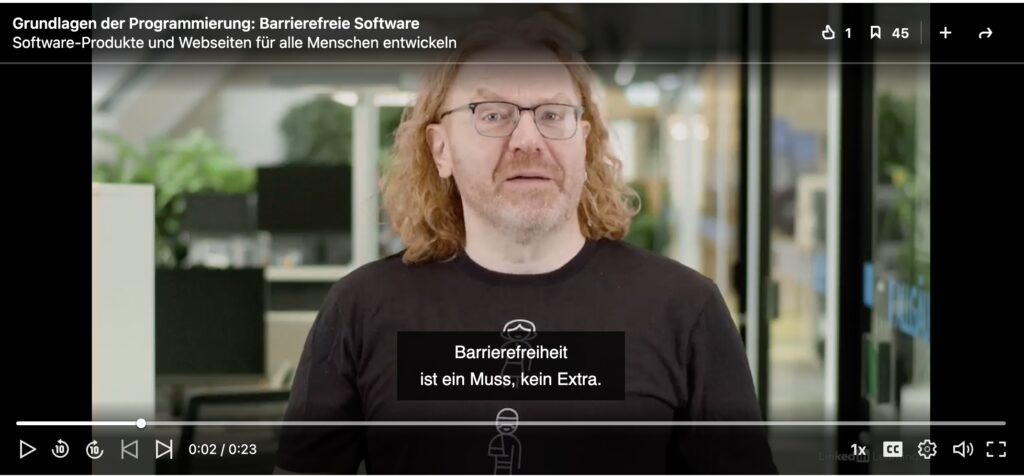
Der Kurs richtet sich an Einsteiger und Fortgeschrittene und ist eine Stunde und 28 Minuten lang. Hier ist die Beschreibung von LinkedIn und die detailierten Videotitel:
Christian Heilmann beweist in seinem LinkedIn Learning-Kurs, dass einfache barrierefreie Nutzbarkeit von Software heutzutage schon mit überschaubarem Aufwand erreicht werden kann. Er empfiehlt, von vornherein auf ein technisches Framework zu setzen, das flexibel anpassbar ist und gängige Standards moderner Web-Technologien (z. B. HTML5) integriert, und bringt Ihnen gängige Webtechniken nahe, die Funktionalitäten zur Verfügung stellen, die Sie nach Baukastenprinzip nutzen können. Sehen Sie, wie sich zum Beispiel Eingabegeräteunabhängigkeit, assistive Technologien oder bestmögliche Nutzung des Bildschirms auf Code-Ebene effektiv umsetzen und Barrieren vermeiden lassen. Darüber hinaus lernen Sie für Browserentwicklungswerkzeuge und Programmierumgebungserweiterungen jeweils passende Teststrategien kennen.
Software-Produkte und Webseiten für alle Menschen entwickeln 23 Sek.
1. Was bedeutet Barrierefreiheit für Softwareentwickler:innen?
Was bedeutet Barrierefreiheit? 1 Min. 50 Sek.
Warum ist Barrierefreiheit für Entwickler:innen wichtig? 3 Min. 11 Sek.
Voraussetzungen für diesen Kurs 1 Min. 3 Sek.
2. Barrierefreiheit verstehen
Was ist Barrierefreiheit? 2 Min. 48 Sek.
Eingabegeräteunabhängigkeit sicherstellen 5 Min. 34 Sek.
Assistive Technologien verstehen 10 Min. 46 Sek.
Dokumentstruktur und Alternativzugänge 7 Min. 24 Sek.
Darstellungsmodi verstehen 4 Min. 59 Sek.
Zoommodus und beste Nutzung des Bildschirms 3 Min. 41 Sek.
3. Teststrategien für Entwickler:innen
Browserentwicklerwerkzeuge 7 Min. 43 Sek.
Browsererweiterungen 6 Min. 26 Sek.
Programmierumgebungserweiterungen 3 Min. 37 Sek.
4. Barrierefrei entwickeln
Nutzen der Plattform 4 Min. 5 Sek.
Barrieren vermeiden 5 Min. 23 Sek.
Alternativzugänge erlauben 3 Min. 6 Sek.
Event Handling unabhängig von Eingabegeräten 6 Min. 42 Sek.
Darstellungsmodi in CSS 4 Min. 1 Sek.
Tipps zum Weiterlernen
Nächste Schritte 5 Min. 32 Sek.
Posted in General | Comments Off on Neuer Kurs auf LinkedIn Learning: Grundlagen der Programmierung – Barrierefreie Software