Christian Heilmann

You are currently browsing the archives for the General category.

Archive for the ‘General’ Category

A code snippet to scrape all headings and their target URLs from a markdown generated page

Friday, February 19th, 2021

When you use Markdown to write your documentation most static page generators will generate IDs for each of the headings in the document to allow you to navigate directly to them. (more…)

Using position: sticky to create persistent headers in long texts

Tuesday, February 9th, 2021

Macbook covered in sticky notes

The sticky value of CSS positioning is an underused gem. It treats an element as it if is positioned relative until it reaches a certain position on the screen and then turns it into a fixed position.

I’ve used this on the developer advocacy handbook to keep headers in sight above the current section until you scroll to the next one. You can see it in action in the following screencast:

The CSS responsible is this:

h1, h2, h3, h4 {
  font-family: 'Segoe UI', Tahoma, Geneva, Verdana, sans-serif;
  letter-spacing: -1px;
  position: sticky;
  top:0;
  background: var(--background);
  padding: .5em 0;
}

This means that any heading that reaches the top of the screen when you scroll will stick there (position: sticky and top:0). Giving the heading the same background colour as the main document and adding some padding makes sure that the rest of the text isn’t visible behind the fixed heading.

There are quite a few JavaScript solutions for this, but as you can see these are not needed.

Sticky had a problem that it wasn’t supported by Safari for a while, but as with everything that is “impossible to use”, this was only temporary. The web keeps moving, it is fun to catch up with it.

Sharing data between CSS and JavaScript using custom properties

Monday, February 8th, 2021

One of the big battles we see in the web development world is still CSS vs. JavaScript. Both have their merits, their own syntax and ideas and it can be tough to get your head around them.

This is why I love that we have ways to make the two communicate and use each for what it is best at. For one thing, I always found it annoying to manipulate the styles object of a DOM element. It meant accessing the element and setting the various style properties. In the end, it resulted in an inline style attribute you’d never write by hand.

A much cleaner way to me is to use CSS custom properties. These are commonly called “CSS variables” and you define them in CSS using the—syntax.

:root {
  --pagebackground: powderblue;
}
body {
  background: var(--pagebackground);
}

Being “variables”, you can re-use them throughout your styles document.

The fun begins when you use JavaScript to manipulate them. In the case of this example, the CSS custom property is set on the root element of the document. So you can read it with JavaScript using the following.

let bg = getComputedStyle(document.documentElement).
  getPropertyValue('--pagebackground');

And you can set it with JavaScript by accessing the style of the root element (or any other element with custom properties) and setting a property.

document.documentElement.style.setProperty('--pagebackground', 'firebrick');

You can try this live on codepen:


See the Pen
Testing CSS Custom properties interaction
by Christian Heilmann (@codepo8)
on CodePen.


The great thing about that is that you can use the power of JavaScript to give CSS things it can’t access. For example, CSS can’t read the coordinate of the mouse cursor, but JavaScript can.

In our CSS, we can define two properties as 0:

:root {
  --mouse-x: 0;
  --mouse-y: 0;
}

And in JavaScript, we add a mousemove handler to the document and manipulate these two properties:

let root =  document.documentElement
document.addEventListener('mousemove', e => {
  root.style.setProperty('--mouse-x', e.x);
  root.style.setProperty('--mouse-y', e.y);
});

And that’s all the JavaScript we need. As CSS custom properties are live and change their value, we can now, for example, show a circle where he mouse cursor is in CSS using the following.

Our HTML:

<div id="ball"></div>

The CSS:

:root {
  --mouse-x: 0;
  --mouse-y: 0;
}
#ball {
 width: 20px;
 height: 20px;
 background: white;
 border-radius: 100%; 
 transform: translate(
 calc(calc(var(--mouse-x) - 10) * 1px), 
 calc(calc(var(--mouse-y) - 10) * 1px)
 );
}

Some information on the CSS here:

  • We set the width and height of the ball DIV to 20 pixels and the background to white.
  • Adding a border-radius of 100% makes sure we get a circle and not a square.
  • We then use transform: translate to position the circle on the screen. This could be something like transform:translate(200px, 300px) to position our ball at 200 pixels horizontal and 300 pixels vertical.
  • As JavaScript sets the CSS custom property to a numeric value, we need to convert it to pixels by multiplying it with “1px”.
  • And as the ball is 20 pixels big, we can’t just place it at—mouse-x and—mouse-y but we need to subtract 10 from it to centre it on the cursor.

This trick allows us to do complex calculations, read out browser state and interaction state in JavaScript and still keep all the look and feel in CSS. To me, that’s a win.

If you want to see it in action, you can try this codepen. I also added a background effect to show how you can re-use the mouse x and y data:


See the Pen
Mouse position as custom CSS property
by Christian Heilmann (@codepo8)
on CodePen.


Bringing Edge’s Developer Tools to VS Code for debugging Web Apps – a talk at VS Code Day

Wednesday, January 27th, 2021

Today is Visual Studio Code day and I gave a talk about an extension to Visual Studio Code that helps you with avoiding context switching. If you want to listen to the talk, here is a pre-recording I did as a fallback should my connection not work out.

Here’s what I talked about:

Hello there, let’s talk about making it easier to debug web applications with Visual Studio Code.

Specifically I want to talk about context switching and how to avoid it. What does that mean?

Three contexts of web development - editor, browser and terminal

As web developers, we work in three different contexts:

  • We write our code in an editor
  • We check if everything works and tweak it in the browser, and
  • We deal with version control and deployment in the terminal.

In essence, we use different tools for each task. This may not seem like much, but it is a cognitive overhead that impacts our developer efficiency. As web developers we are used to this, but people coming from other
platforms to the web are used to having one IDE that does all of that. This makes the web look harder and the tooling of it not up to par.

With browser developer tools we took a first step to remove one of the context switches making it shorter to go from testing to editing.

As you may know, browser developer tools have an in-built code editor. In addition to tweaking individual CSS settings, you can activate the link to the style sheet. This opens it in an editor. You can set up workspaces and you have a breakpoint debugging environment for scripts right in the browser.

The usage of this feature is, well, let’s call it sub-optimal.

The visual tools to tweak and debug CSS issues, on the other hand, are a roaring success. So much so that we keep improving them to offer accessibility and compatibility insights and offer new features like typography and CSS grids debugging.

In the editor space, Visual Studio Code has taken an excellent step towards aligning coding and deployment.
With an integrated terminal, Git support and linting options you don’t have to switch between editor and terminal any longer. If you haven’t looked into it yet, the webhint extension is an excellent way to make sure you don’t make obvious mistakes that you would need to fix in the browser. This cuts down on yet another context switch.

A lot has changed in the browser space since the days of Netscape and Internet Explorer. Browsers can be fully automated using Webdriver. Browsers are also embeddable into other applications as Webviews.

Probably one of the biggest success factors of Visual Studio Code is that it allows for extensions.

So, why don’t we merge the efforts of Visual Studio code and Edge to cut down on context switching?

Merging the efforts of VS Code and Microsoft Edge to cut down on context switching

This is exactly what we did with the Microsoft Edge tools for VS Code extension. It’s been quite a success so far and we have a lot more plans for it.

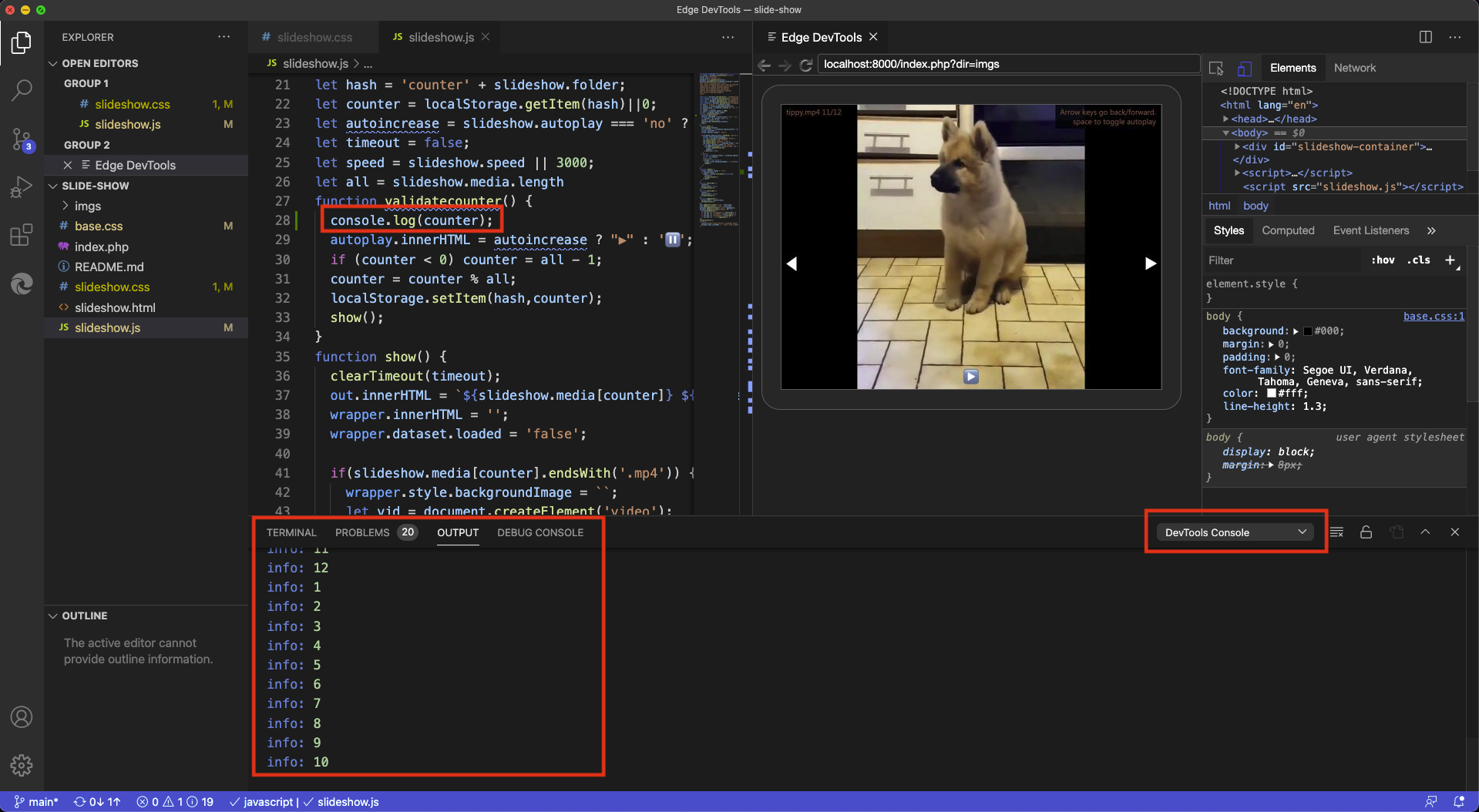
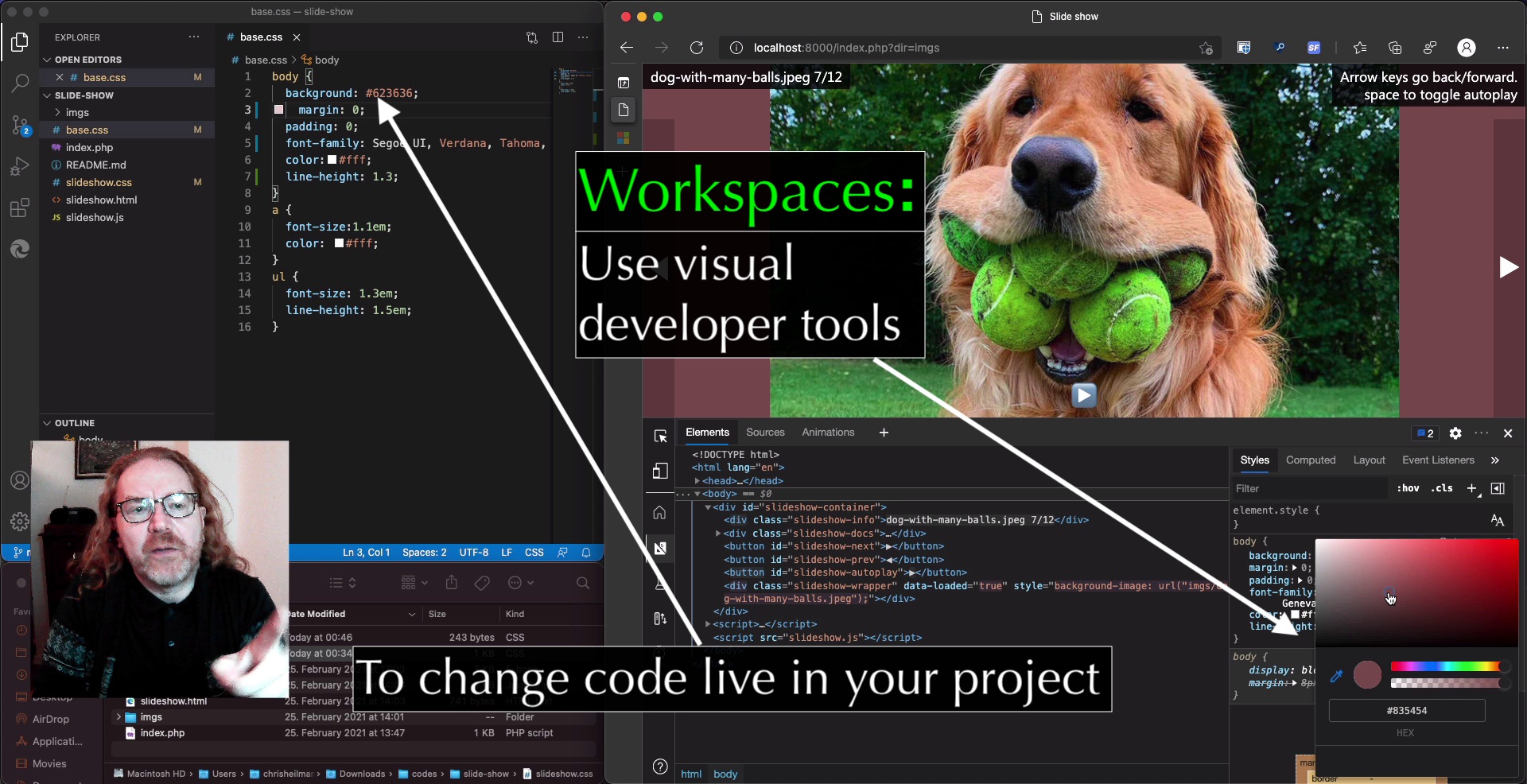
Here is how it works: you open the extension, you connect to a new browser instance and you get a browser right inside Visual Studio Code with the developer tools already open. You can use the Visual tools to tweak the styles and the changes reflect in your source code. Or you can activate the style sheet links in the CSS pane to edit inside Visual Studio Code.

What you can do now…

  • Inspect, edit and tweak the DOM structure of the product you build using the tools
  • Inspect Network requests
  • Interact with the browser inside VS Code
  • Sync changes with your code (setting up Sourcemaps/Watchers)
  • Choose the version of Edge you want to have in the tool
  • Choose an own browser window or a headless version (embedded in the extension)

Things we learned building this extension:

  • Making a complex interface like developer tools keyboard and screenreader accessible is hard
  • Embedding this interface in an IFRAME in an extension makes that even harder
  • There are quite some differences in keyboard handling between Mac and PC
  • Mac OS doesn’t like browser windows running the background (use headless)
  • The Chromium version of Electron lags a few versions behind the main build (naturally)

Feature History (based on user feedback and research)

  • Elements tool was first – everybody uses that one
  • Network tool was next
  • Re-architected the extension to allow for contribution without having to download and build the whole of Chromium
  • Allowed for any version of Edge (previously only Canary)
  • Added Edge driver as a dependency – earlier you needed to install both extensions
  • Headless Mode
  • Themes (Dark/Light)

The extension is open source and available on GitHub. We deal with all of our feature requests and user interaction there. We’d love to hear from you and see what you can come up with. The features of this extension are driven by user requests and telemetry in the browser developer tools and we want to build what you need. So please, tell us what’s missing.

That said, one idea we have right now is to make yet another context switch unnecessary.

It is great that you can already inspect network traffic in the browser developer tools. But when things go wrong with an API call you still have to use a third-party tool or the terminal.

This is why we added an experiment that allows you to ”edit and resend” any network request. Editing the request opens the Network Console, which allows you to tweak the request parameters, authentication options or even import API collections and environments. That way you could fix any API issue directly in Visual Studio Code. What do you think? Tell us on GitHub.

The Network Console experiment in Microsoft Edge

And that’s all we have time for. I’d love for you to give the developer tools extension a spin and come to GitHub to work with us!

CSS is awesome: A dark/light mode switch with preference detection in 15 lines of CSS

Tuesday, January 26th, 2021

I just love how far CSS has come in the last few years. With custom properties and media queries you can achieve so much in just a few lines of code.

For example, these 15 lines make sure that users of light mode in their operating systems get a black on white document and those with a dark mode setting a white on dark one:

:root {
  --foreground: #111;
  --background: #f8f8f8;
}
@media (prefers-color-scheme: dark) {
  :root {
    --foreground: #f8f8f8;
    --background: #111;
  }
}
body {
  font-family: helvetica, sans-serif;
  color: var(--foreground);
  background: var(--background);
}

We define two properties called foreground and background and set them to dark on white as a default. We then check if the preferred colour scheme is dark using a media query and flip them if it is. Instead of fixed colours for color and background we use the properties and that’s that :).

You can try it out in this codepen. Users of dark mode should get a dark document, others a light one.


See the Pen
Target styling demo
by Christian Heilmann (@codepo8)
on CodePen.


You can try this out using the simulation options in Browser Developer tools :

Simulating dark/light mode with developer tools to test the CSS

CSS tricks has a great article that covers all on media queries if you want to learn more.