Christian Heilmann

You are currently browsing the archives for the General category.

Archive for the ‘General’ Category

Happy Birthday, WWW – 30 years of mining a landfill for valid code

Friday, August 6th, 2021

Sifting for gold in a pan full of rubble

Today the World Wide Web is 30 years old. I’ve worked on it since 1997 or so and I saw a lot of technologies and design trends come and go. I’ve also seen a lot of “this is much better and will replace the web” solutions come and go. What remained is the web with its “dumb” technologies HTTP, HTML and CSS. Each of them are forgiving in their nature. They allow developers to make mistakes without punishing the end user. Many people sing the praise of this approach and architecture, so I’m not going to repeat it.

Enter JavaScript. When I started with JavaScript, it was a fun thing to do as it prevented you from having to reload a document. You could validate a a form and tell people they forgot something. A much better experience than finding out after a few seconds of loading the document. And of course hoping people in the other room don’t pick up the phone and interrupt your modem connection.

JavaScript is fun to work with as a developer. You can generate HTML and CSS with it and you have full control over what you create. You can detect things like window size and if certain technologies are supported and create content accordingly. You can load things on demand and only when the user needs them. It feels great to be in control.

CSS and HTML, on the other hand, feel like you give away control and hope for the best that it will work. There is no feedback channel, you can’t set up an error trap. That’s on purpose and the main thing to learn as a web developer is that you aren’t in control, but your users are. The more flexible your solution is to cater to the needs of your user, the more successful it will be. “Survival of the fittest” isn’t about strength, but about adaptability.

JavaScript isn’t a web technology. It isn’t governed by the W3C but by ECMA. What works and doesn’t work in JavaScript is dependent on browser makers. What you can use in JavaScript is also dependent on the end user having a “modern” browser. “Modern” means nothing, by the way, and I wished we stopped using that term as it is fleeting.

Other things that affect your JavaScript happiness are proxies and blocker add-ons. Or bad connectivity and a file not loading. The issue is that JavaScript isn’t as forgiving as HTML and CSS is – when you do something wrong, things break. Used wrongly, JavaScript can seriously affect the performance and even the security of the web product you create. To a degree this also applies to CSS and HTML, but you have a lot more power with JavaScript.

However, if you work with a new-ish computer on a fast connection, you are most likely not savvy to any of these issues. Instead, you’re prone to pile up more and more dependencies and code to increase your developer convenience.

When it comes to used technologies of the web, it shouldn’t be a surprise that a lot of it depends on JavaScript. And on not well-thought-out, hacky and unmaintained JavaScript to boot. Libraries don’t get updated regularly despite blatant security issues in them. Stop-gap solutions built to work around an issue of a browser in a certain version never get removed.

The web is a landfill of accumulated, unmaintained and often bafflingly bad code. And yet it works. This isn’t only the result of sturdy technologies driving it. It is – to a large part – browsers doing anything they can not to break the web.

The first browser I used as a daily driver was Netscape 3. Netscape had no chill. If you didn’t close your tables in your HTML, it didn’t show anything. That taught me to value HTML validators as part of my workflow. But these days browsers can’t ever break the web. Whatever you throw at them, something will render. And that takes a lot of work and we should thank browser makers more as that is something that kept the web alive.

Working on browsers taught me a lot of things and made me a lot more humble than I was when I was a web developer. As a web developer I thought browser makers keep the web from evolving as it doesn’t affect their bottom line. As a developer working for browsers I learned that a huge part of the engine is dedicated to backwards compatibility. JavaScript engines make sure that code that performs badly because of the way it was written still runs smoothly. And new features of the platform only get into production after making sure that they aren’t a security, accessiblity or performance issue.

So, when we celebrate the web today, I also think we should celebrate the people who built the technology that enabled it. Browser makers, framework creators, server-software creators and all the people working on the infrastructure of it.

Of course it is damn cool that the first web site ever (and yes, the Space Jam one – enough already) still renders in browsers now. The reason is though that these web sites don’t do anything hard and are quite clean code. That the web in between, with the crimes of DHTML, the library and browser wars and all the hacks people put in there to achieve a certain effect still renders is because of browsers allowing for this.

I would love to be able to make browsers a lot leaner. But the web we have now is a mess. A wonderful, exciting mess that allows anyone to take part in it as a creator. And that’s thanks to its base technologies and to a lot of people in browser companies making sure it keeps working.

Redirecting GitHub Pages

Tuesday, August 3rd, 2021

Monopoly card redirection to jail

Today I finished moving the Edge Tools for VS Code extension documentation to its official space in the Microsoft docs. That meant I needed to redirect the documentation I hosted with GitHub pages in a docs folder/branch of the repository.

There are plugins available for that, but I didn’t want to install any extra features on the repository, so I chose a simpler approach.

You can define HTML templates for your GitHub pages in a folder called _layouts and connect them using the Markdown frontmatter. So if you create a file called test.md you can define a template called forward. You can also add a target to redirect to, in this case https://example.com

test.md:

---
layout: forward
target: https://example.com
---
... rest of your markdown ...

Your forward.html template in the _layouts folder can use a meta redirect to the target. In its most basic form this can be:

forward.html:

<html lang="en">
<head>
    <meta charset="utf-8"/>
    <meta http-equiv="refresh" content="0;url={{ page.target }}"/>
    <link rel="canonical" href="{{ page.target }}"/>
    <title>Redirecting</title>
</head>
<body>
    <p>Document has moved, if you aren't automatically redirected 
    <a href="{{ page.target }}">go here</a>.</p>
</body>
</html>

That means that if someone goes to the test document in your GitHub pages, they will get redirected to example.com

You can see this in action in this GitHub demo repo I quickly put together. I’ve added quite a few more options to redirect, such as definition of the time and displaying different titles and text. You can read it all and try out the demos in the README.

Using console.log() debugging in Visual Studio Code

Friday, July 30th, 2021

Using the new in-built JavaScript debugger in Visual Studio code you can use the browser developer tools Console right inside the editor.

I just published a “TikTok” style video on the official Visual Studio Code channel explaining this and – after lots of criticism for the quality of the video (lads, this is on purpose!) – people had more questions, so here goes.

In the video I use a project I have open with a launch.json file already defined, which means it opens the correct URL for you when you start debugging. You can, however, also do that by hand. And it even works without a local server. So, let’s do this.

Step 1: Create a folder and call it consoledebug
Step 2: Start Visual Studio Code, choose “open” – select that folder

New instance of Visual Studio Code with "Open Folder" selected

Step 3: Select New File, call it index.html
Step 4: Add some HTML/JS and save it

HTML Example for console debugging

Step 5: Select the “Run and Debug” icon and press the “Run and Debug” button

Selecting the Run and Debug workflow

Visual Studio Code now opens a browser window for you and you can see the console.log message from the demo code in the Debug Console.

Console messages in the Debug Console of Visual Studio Code

You can use the Debug Console to do anything you normally do in the Console of the browser tools. You also have access to all the convenience methods, like $ for document.querySelector. Try it out by using $(‘body’) in the Debug Console. You get all the information about the body element of the current document.

Accessing the document body from the debug console

This is a full REPL console, and you can just type in any JavaScript to try out, for example 2+3 or ‘log’.repeat(20)

Running JavaScript in the Debug Console

You also have full access to the Window object and the DOM of the current page, for example, to change the background colour of the document, you can use $(‘h1’).style.background = ‘peachpuff’ (and not what I did first in the screenshot).

Changing CSS from Console

For all the features of Console, check the documentation.

If you use Edge as your debugging browser, you also get something extra. Hitting the Inspect button on the debug bar will open the Developer Tools Elements and Network right inside your editor.

Developer Tools in VS Code

But more on that later.

Accessibility WTF: Voiceover on Mac announcing a list tree as a table?

Wednesday, July 28th, 2021

I’m currently investigating a strange bug we got reported with the Edge Developer Tools. Voiceover on MacOS announces the DOM tree as a table and tells you how to navigate it – which then doesn’t work.

Voiceover announcing a list marked up as an ARIA tree as a table.

The reason is that the markup isn’t a table. The DOM tree is, well, a tree, built with OL, LI and ARIA roles. But Voiceover doesn’t recognise that. Narrator on Windows and NVDA work.

Developer tools open on Developer Tools showing the right markup for an accessible tree

I thought at first that it is a problem related to the list-style:none voiceover issue but it even happens on an example without any styles and on the W3C demo of treeview .

Bare bones example of the HTML of Developer Tools with Voiceover announcing it wrong

W3C treeview demo announced as table in voiceover

Let’s hope this gets fixed soon, as for now, I am stumped as to work around this issue.

Update: As Tomas Caspers pointed out on Twitter, this might be caused by a weird old HTML demo in the ARIA spec using a table and lots of roles to explain the functionality.

Debugging JavaScript, DOM, CSS and accessing the browser console without leaving Visual Studio Code

Thursday, July 22nd, 2021

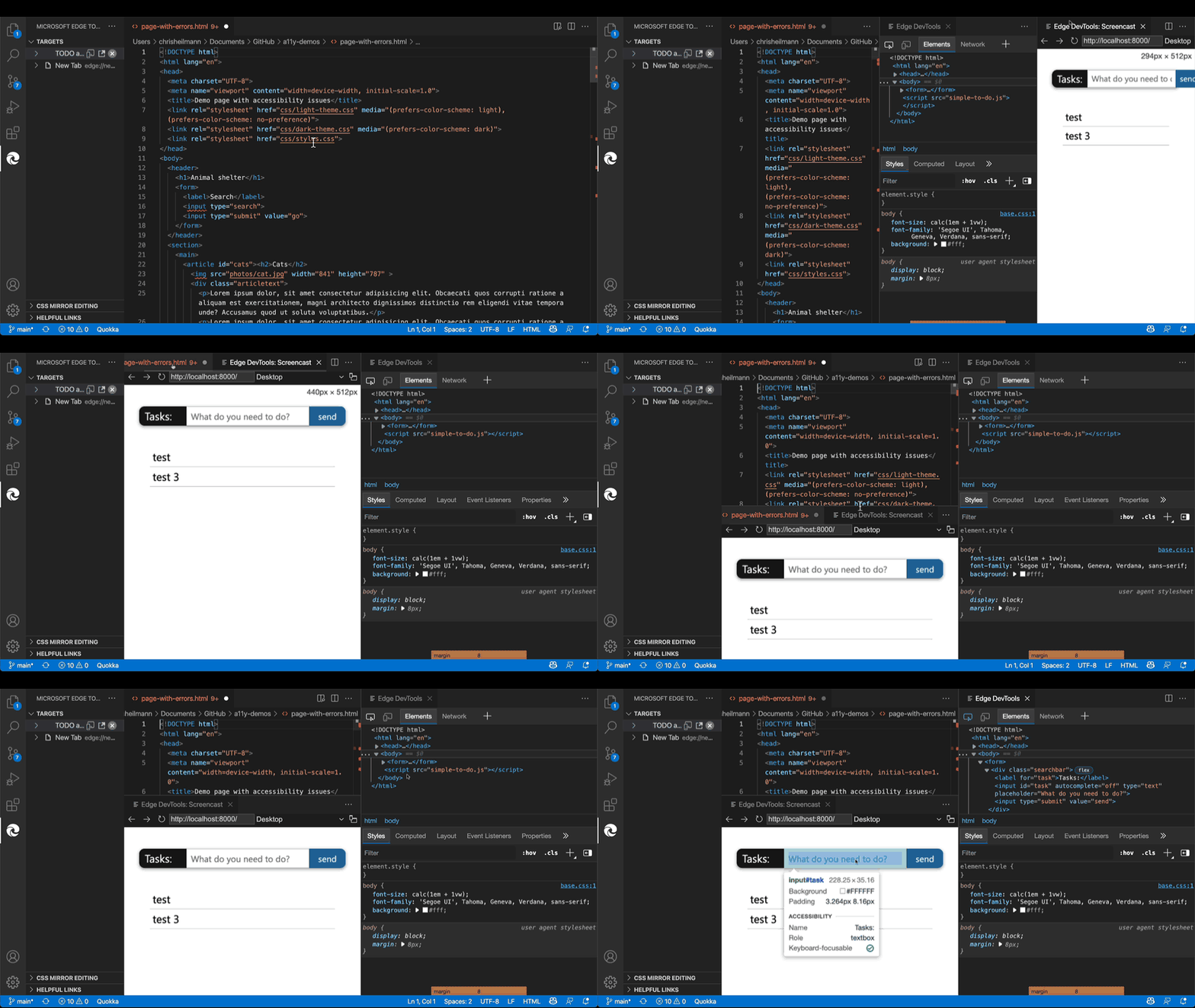
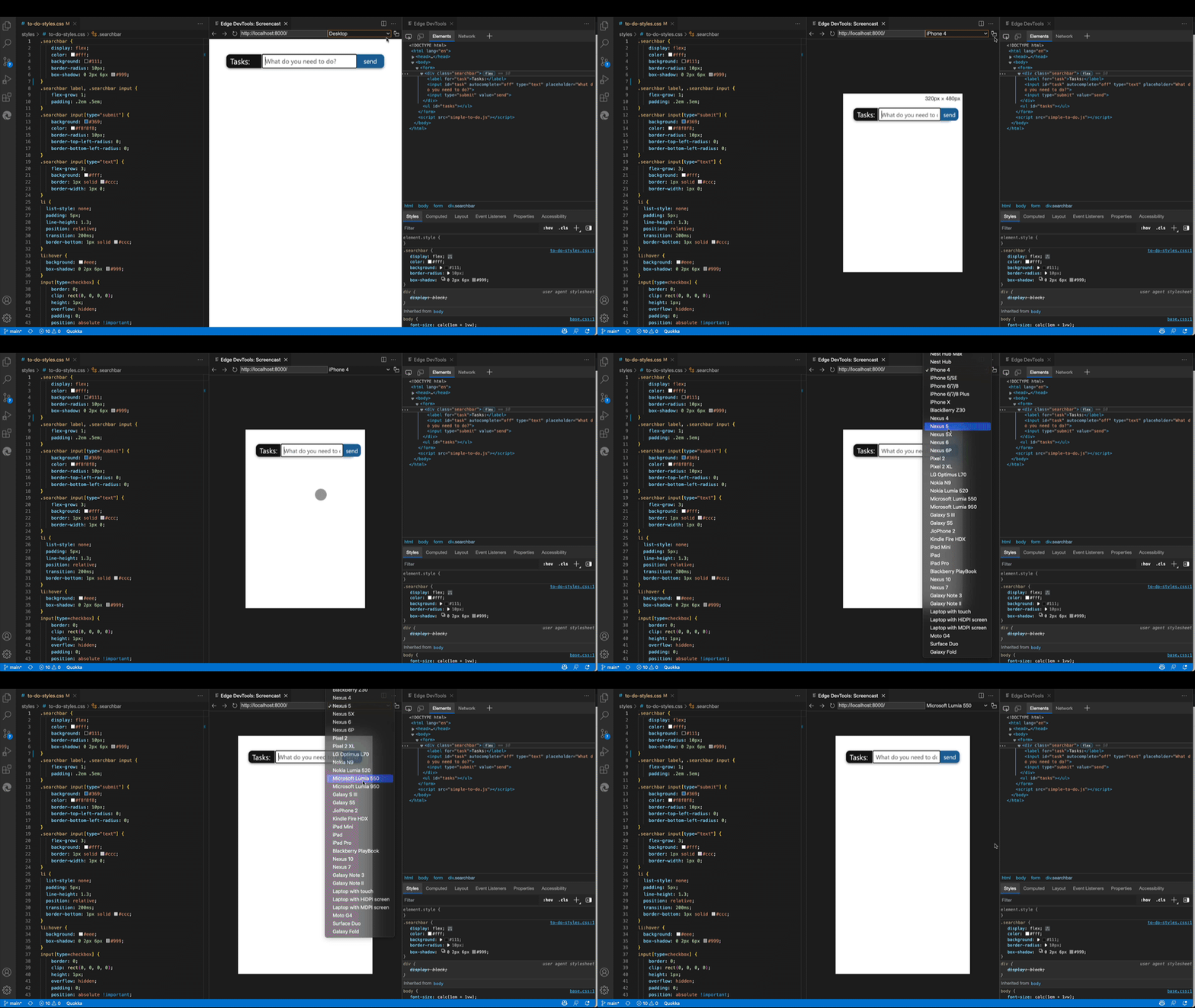
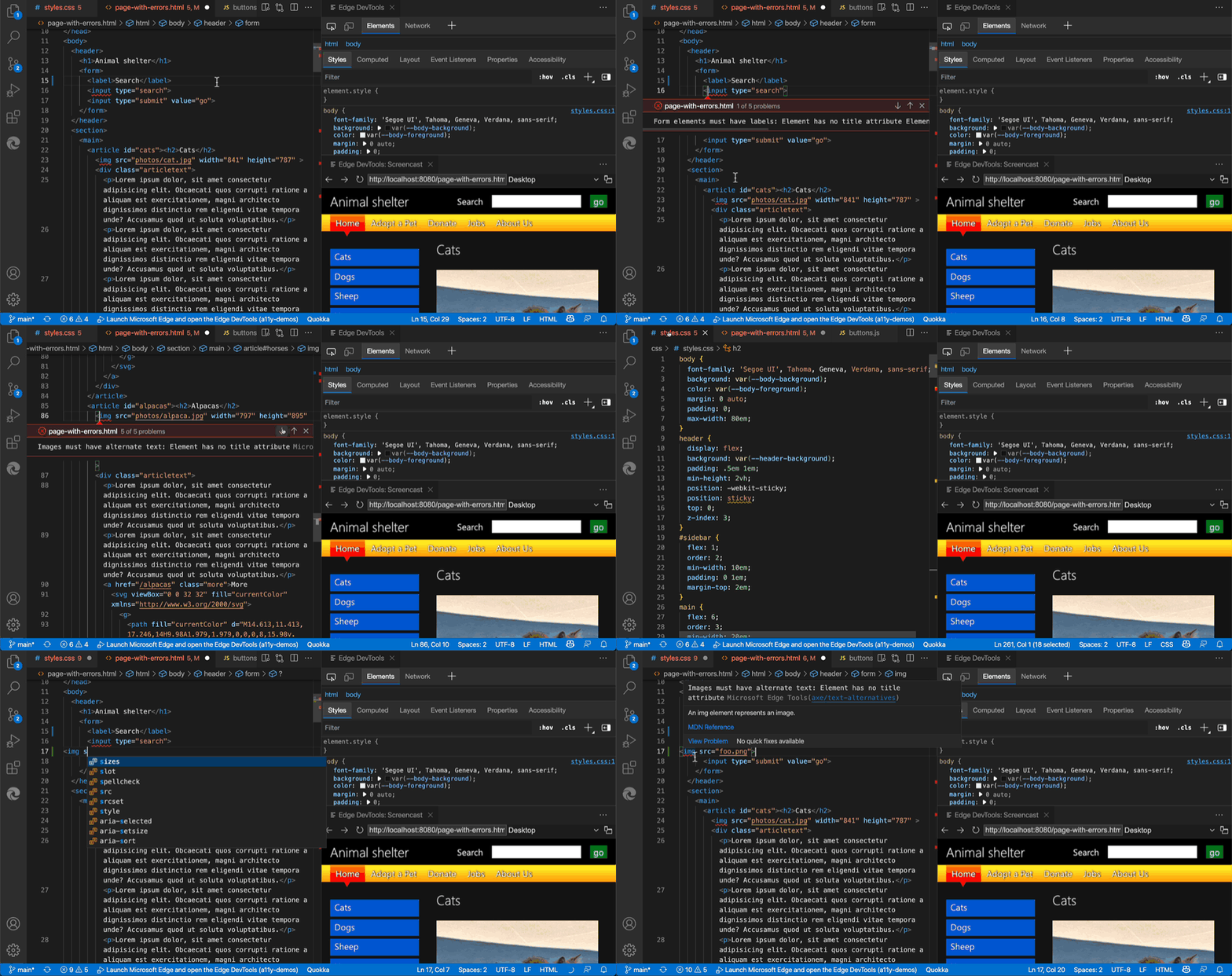
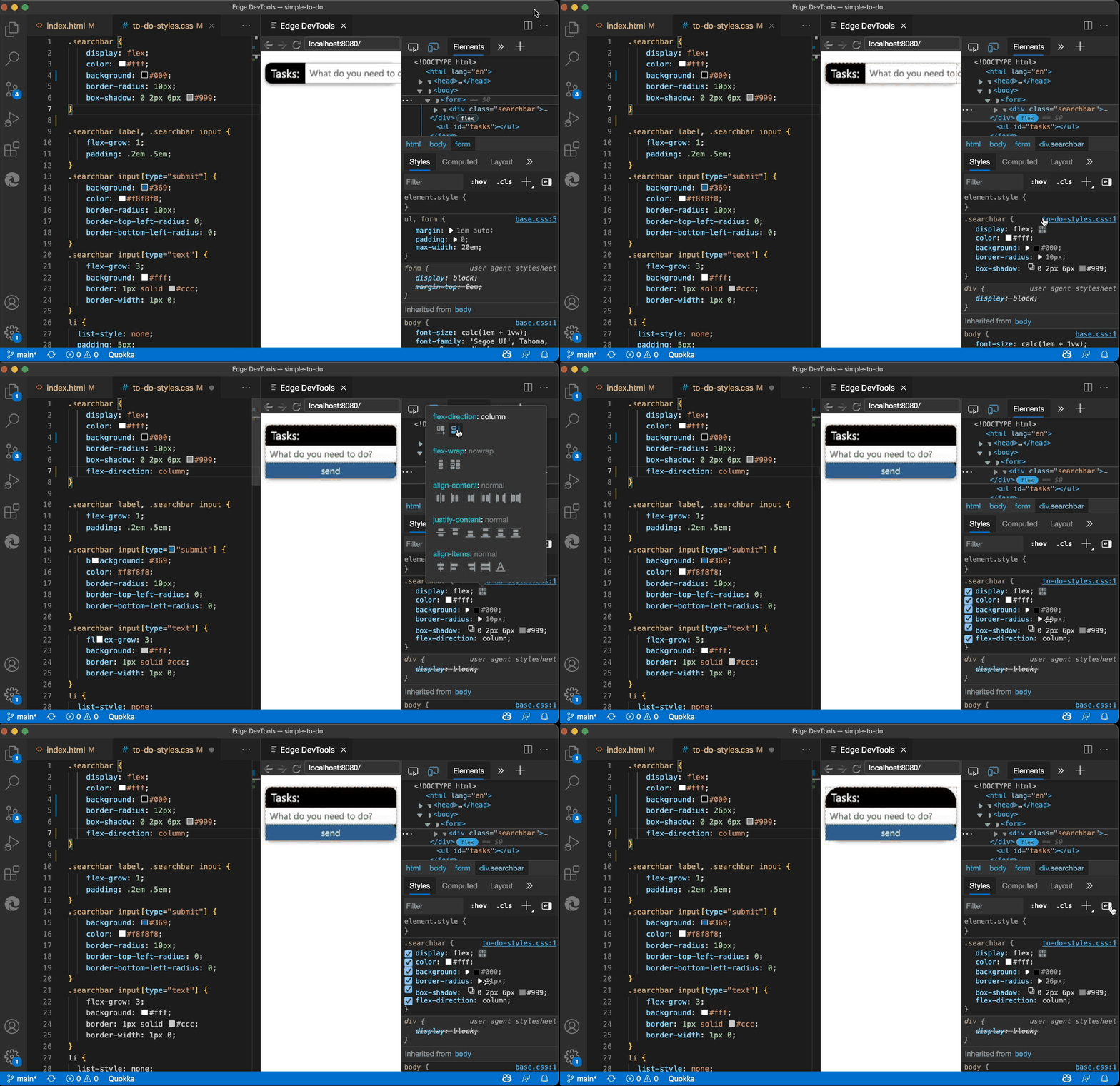
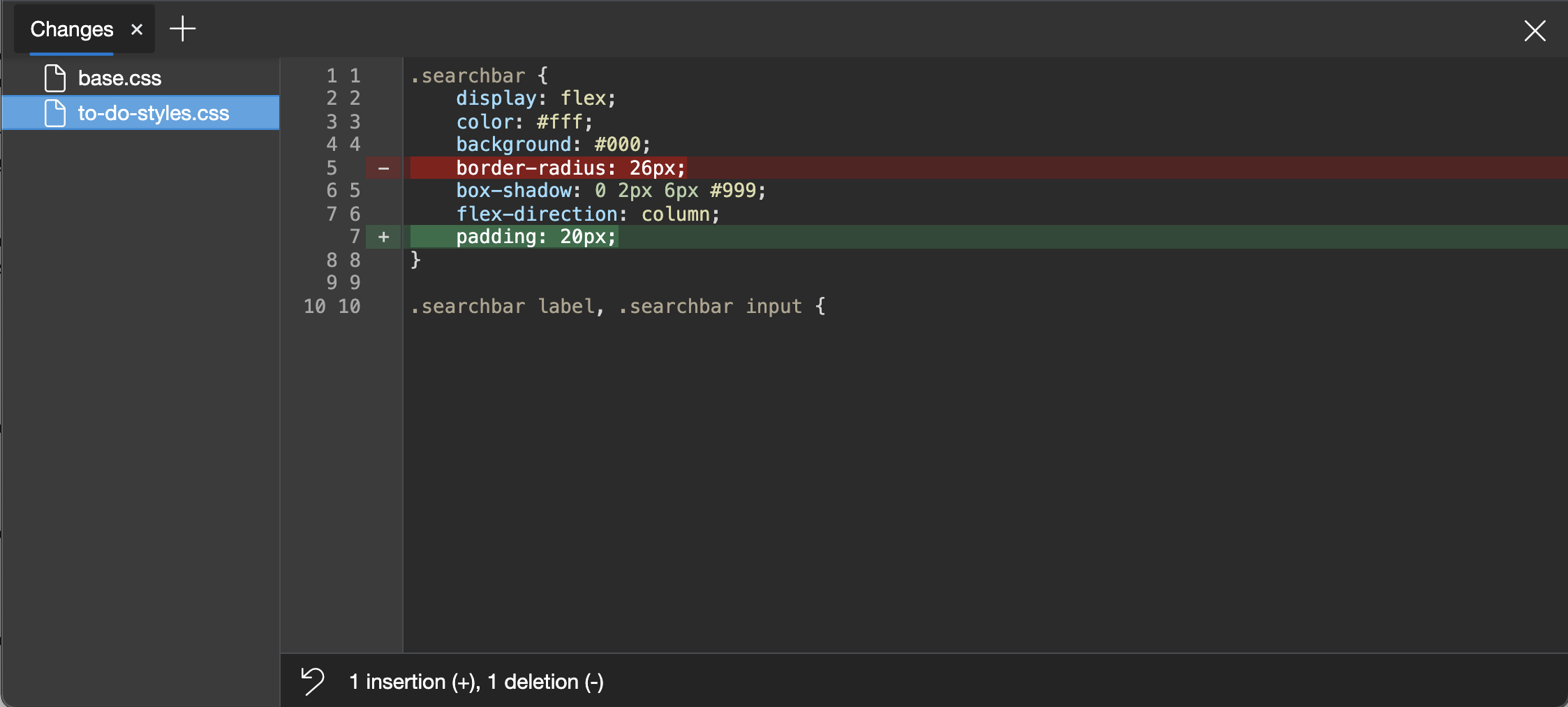
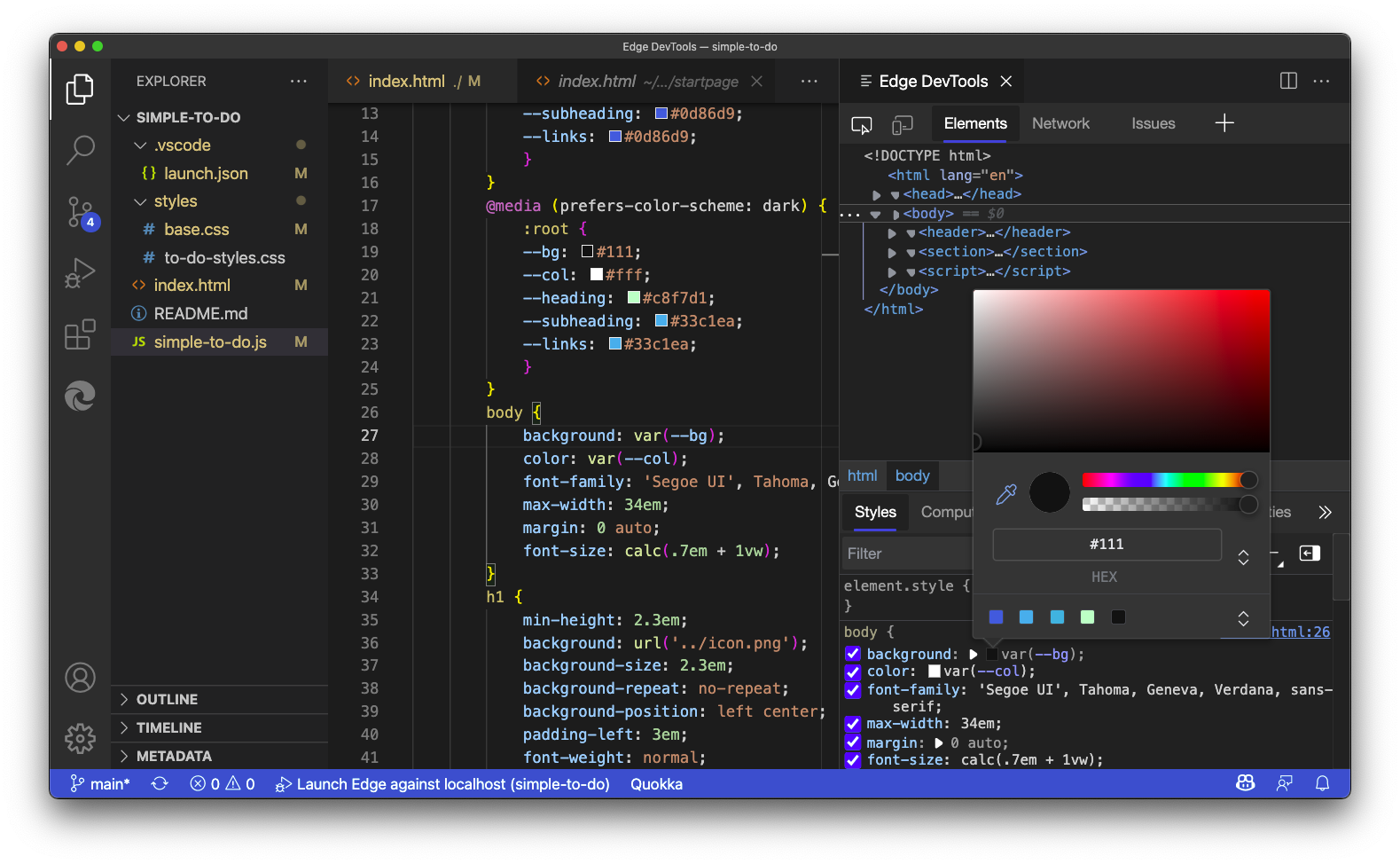
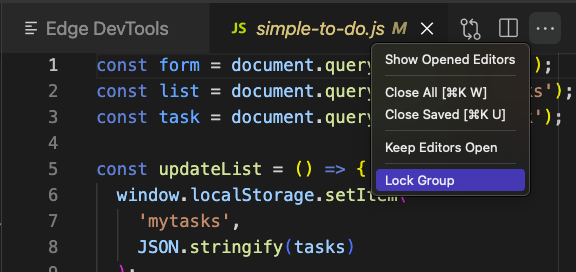
Now that Visual Studio Code has an in-built JavaScript debugger, it has become incredibly convenient to debug your project without leaving the editor. You can debug JavaScript, tweak CSS and the DOM and interact with the browser Console right inside VS Code. And you don’t need to know which extensions to install as the editor guides you along the way.

Under the hood, this uses the JS Debugger and the Edge Tools for VS Code extensions. Here’s what the flow looks like:

If you haven’t got the Edge Tools extension installed, VS Code will prompt you to do so the first time, as shown in this screencast:

In addition to breakpoint, DOM and CSS debugging, Visual Studio Code’s Debug Console now also is the same Console you normally get in the browser. You can access the window object of the browser instance and use all the Console Utilty Methods like `$` and `$$`.

To run the debugger automatically on your project, you need to create a `launch.json` file and define the debugger as the launch type. The Edge Tools extension can also do that automatically for you. If your application is not on `localhost:8080` you need to tweak the `url` parameter.

{
    "version": "0.2.0",
    "configurations": [
        {
            "type": "pwa-msedge",
            "request": "launch",
            "name": "Launch Edge against localhost",
            "url": "http://localhost:8080",
            "webRoot": "${workspaceFolder}"
        }
    ]
}

If you want to see this in action, you can download/fork the demo to-do app I used in the screencasts.

What do you think? Anything you’re still missing in that workflow? File an issue on GitHub and tell us about it!