Christian Heilmann

You are currently browsing the archives for the General category.

Archive for the ‘General’ Category

Update to the Developer Evangelism/Advocacy handbook almost complete

Tuesday, December 15th, 2020

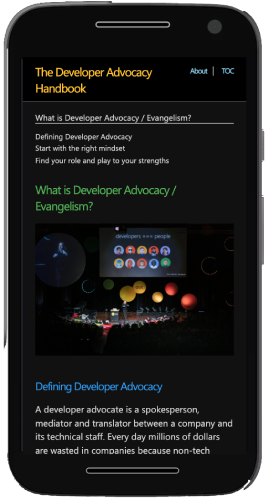
Writing Setup

Eleven years ago I wrote the Developer Evangelism Handbook .Last month I was approached by a publisher who is interested to print it in another language. Whilst flattered, I also couldn’t let that happen as there are parts of the book that are quaintly outdated now. Some of the products I promote aren’t available any longer and there are big differences in the way we use social media and the web now compared to 2009.

So I spent a few evenings polishing the book, removing a lot of outdated material and adding new things that are more relevant now.

I added materials about virtual conference participation, code hosting, recording your own videos and screencasts, and incorporated some of the posts and materials I created since first publication. Currently it is at roughly 40000 words and the letter sized Word Doc would me 85 pages.

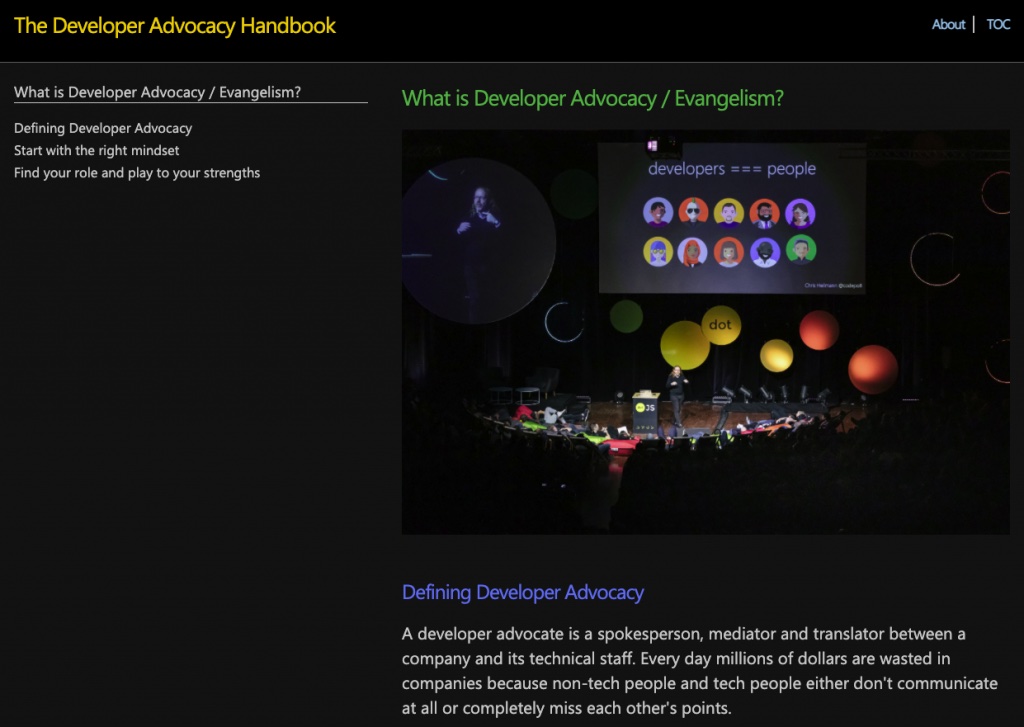
For now, I will publish the book online again, chapter by chapter and also consider creating some ebooks for those who prefer using readers. There’s a dark and light theme and it will work across all resolutions and platforms. I’m using jekyll/eleventy with GitHub pages and learn a few new things on the way.

Here’s the new table of contents:

  • About this handbook
    • About this version
    • About the author
  • What is Developer Advocacy / Evangelism?
    • Defining Developer Advocacy
    • Start with the right mindset
    • Find your role and play to your strengths
  • Work with your own company
    • Prepare for prejudice
    • Deal with company changes
    • Be there for internal developers
    • Work with PR and marketing
    • Be known as an outward channel
    • Train other advocates and developers
    • Share useful technology
    • Balance your personal and official channels
    • Remove the brand
  • Working with your competition
    • Work with the competition
    • Show respect to the competition
    • Acknowledge when the competition is better
    • Know about the competition
    • Build examples using and try out competitive products
  • Prepare for outreach
    • Get your facts right
    • Know the audience and their needs
    • Have expert backup
    • Choose the right medium
    • Plan for failure
  • Get speaking opportunities
    • Take part in podcasts
    • Take part in panels
    • Go to Grass Roots events
    • Go to Meetups
    • Write articles
    • Offer Brownbags
    • Ask questions at conferences
    • Be a presenter people want to invite – publish your presenter terms
  • Travel and conference participation
    • Getting your travel and accommodation sorted
    • Who pays what?
    • Be at the event
    • Give the event some social media love
    • Use the event to build a network
    • Keep track of your conference participation
    • Work with the conference buzz
    • Be a part of the conference you talk at
    • Release immediately
    • Write about conferences
  • Deliver a talk or workshop
    • Be yourself
    • Invite communication
    • Prepare takeaways
    • Plan time for and own the questions and answers
    • Be honest and real
    • Follow up communication
    • Delivering presentations tips: timekeeping and more
      • How will I fit all of this in X minutes?
      • Less is more
      • Your talk is only extremely important to you
      • Map out more information
      • Live coding?
      • Avoid questions
      • Things to cut
      • Talk fillers
      • Planning Your Talk Summary
    • Things not to say on stage – and what to do instead
      • “This is easy…”
      • “I’ll repeat quickly, for the few of you who don’t know…”
      • “Everybody can do that…”
      • “X solves this problem, so you don’t have to worry about it”
      • “As everybody knows…”
      • “This is just like we learned in school…”
      • “That’s why Y(your product) is much better than (competitor) X”
      • “This can be done in a few lines of code…”
      • “If you want to be professional, do X”
      • A quick check
  • Write great posts and articles
    • Simple is not stupid
    • Say what it is – don’t sugar-coat it
    • Size matters
    • Add media
    • Structure your content
    • Time-stamp your content
    • Cite to prove
    • Pre-emptive writing
    • Ending on an invitation to learn more
  • Write excellent code examples
    • Solve a problem with your example
    • Show a working example
    • Explain the necessary environment
    • Write working copy and paste code
    • Have the example as a download
    • Write clean and clever examples
    • Build code generators
    • Hosting code and demos
      • Version Control is your friend
      • Automated Hosting
      • Code showcases
      • Code Sandboxes
      • Live coding environments
  • Prepare great slide decks for presentations
    • Know your stuff
    • Start with the content – not the slides!
    • Start with a highly portable Format – Text
    • Quick Presentation creation tip: unpacking bullets
    • Pick a presentation tool that helps you present
    • Illustrate, don’t transcribe
    • Use and find images
    • About code examples
    • Sound and videos
    • Don’t bling it up
    • Keep it brief
    • Consider the audience
    • Corporate and conference templates
    • Don’t reuse without personalising
    • Share and enjoy
    • Additional presentation tips
      • Introduce yourself
      • Use humour
      • Build bridges to the real world
      • Pace yourself
      • Avoid “Hello World”
      • Be fresh
    • A checklist for more inclusive, accessible and understandable talks
      • Talk materials
      • Format
      • Content
      • Tracking
      • Insurances
      • Bonus round
  • Keep a record of your work
    • Record the audio of your talks
    • Shoot video
    • Link collections
    • keep a conference participation list
  • Know and use the (social) web
    • Find great web content
    • Redistribute web content
    • Be known on the web
    • Use powerful social web sites and products
    • Use the web for storage, distribution and cross-promotion
    • Hint, tease and preview
    • Track your impact
    • Build a network
    • Create or take part in a newsletter
    • Create or take part in a podcast
  • Working from your own computer
    • Get a decent setup
    • Screencasts and screenshots
    • Streaming
    • Taking part in live online chats
    • Attending live online events
    • Technical issues to prepare for
    • Design limitations to prepare for
    • Personal issues to prepare for
    • Recording your own talks
      • Check your setup and your surroundings
      • Record the different pieces of the talk separately
      • Remember that you need to share the screen with your slides
      • Use accessibility features to add extra video value
      • Record in the highest possible quality
      • Keep originals and make it easy to get your video
  • Final words

Chris Heilmann on his desk writing

Until then, I hope you have a great time and take some time off!

Pluralsight celebrates 25 years of JavaScript – a good opportunity to spruce up your knowledge

Thursday, December 3rd, 2020

To celebrate the 25th birthday of our favourite strange and wonderful language for the web, Pluralsight has ramped up the JavaScript.com domain and offers 25 free courses over the month of December. Click the following overview to sign up for free and see them.

Overview of the JavaScript courses offered this December by Pluralsight

In addition to that, on the 10th of December there’ll be a live JavaScript build session with Cassidy Williams.

You can find out more by following Pluralsight on Twitter and the #JavaScript25 hashtag.

Back to Basics: Creating a clickable card interface in plain HTML, CSS and JavaScript

Thursday, November 26th, 2020

One request that keeps coming up in web design right now are card interfaces that work like this:

  • They should have headings and text and link to another document
  • You should be able to click anywhere on the card to go to the other document
  • Except, there could also be inline links in text that should go to another document
  • And they should have a button to close them

Basically this:

Animation of the card demo in action

The problem with that interface is that whilst anchor elements can contain other elements, nesting them makes no semantic sense and is invalid HTML.
So if you tried:

  <a href="#1">One 
    <a href="#2">Two</a>
  </a>

The HTML parser rightfully would kick the second link out.

the HTML parser fixing the invalid HTML in the browser

We need to be cleverer about this. I wanted to work with that and play with some features of the browser developer tools at the same time. That’s how I came up with a clickable card interface in 50 lines of CSS and 11 lines of JavaScript.

You can take a look at the source code of the solution on GitHub and also play with it there.

I explain in detail what’s happening here in this ~15 minute video tutorial on YouTube.

The Developer Tools features in use are:

I also tested an earlier version of the card interface in the browser and with Voiceover on Mac.

Here are the steps to make it happen:

Using semantic HTML

<ul class="fullclick">
  <li>
    <h2>Dogs</h2>
    <p>
      Dogs are excellent, and good people. If want to browse dogs
      by breed, check <a href="https://codepo8.github.io/dog-browser/">
      The dog browser</a>. Almost all dogs are good boys and girls. 
    </p>
    <a href="dogs.html" class="main">More dog news</a>
    <button title="click to close" aria-label="click to close">x</button>
  </li>
  <li>
    <h2>Wombats</h2>
    <p>
      Wombats are cute as buttons and digging machines. They look always
      chill and jolly, but aren't a good idea to keep in the house.
    </p>
    <a href="wombat.html" class="main">More wombat info</a>
    <button title="click to close" aria-label="click to close">x</button>
  </li>
</ul>

  • An unordered list is easy to style and will also tell screenreaders that the items are linked. It will even announce “1 of 2”, “2 of 2” and so on.
  • Using a button with an aria-label to close the card makes it keyboard accessible and screenreaders won’t read “button x” which doesn’t give much information.

Making the whole card clickable

  • Positioning each list item relative makes sure all positioned elements are contained in it.
  • Create an overlay over the whole list item that links to the document works with CSS generated content. Setting a z-index of 1 makes sure this covers all elements without positioning.

.fullclick li {
  list-style: none;
  margin: 1em 0;
  padding: 20px 10px;
  background: #2b2b2b;
  position: relative;
}
.fullclick a.main {
  color: #85baff;
  text-align: right;
  display: block;
  z-index: 1;
}
.fullclick li a.main::after {
  position: absolute;
  top: 0;
  left: 0;
  right: 0;
  bottom: 0;
  content: ' ';
}

Making inline links and buttons interactive

  • Positioning the inline links relative and the button absolute and giving them a z-index of 2 makes sure they can be interactive above the overlay.
  • Using event delegation we can make each button remove the parent element on click

Making the interaction smoother

  • Highlighting the current card on hover and on focus-within in CSS makes it easier to realise where you are on the screen
  • Triggering a new transition on click of the button and listening to the transitionend event means the card fade out
  • Checking the ‘prefers-reduced-motion: reduce’ CSS media query with matchMedia ensures that users with animation turned off don’t get any

The different stages

  • Unstyled Version – the bare bones HTML without any styles or scripts – works only as a list.
  • Clickable Card – you can click the whole card to go to the link destination
  • Adding Button and Links – adding the HTML for inline links and closing buttons. This doesn’t do anything as they are still covered.
  • Fixing Button and Links – setting the inline links to relative and upping the z-index
  • Adding Hover Effects – making it look nicer and more obvious which card you are on
  • Hiding on Click – adding the click handler
  • Hiding Smoothly on Click – adding the transition
  • Final – all together working in harmony
  • Debug – debugging version showing what happens when you click on elements rather than leaving the page

Shifting an image with canvas

Monday, November 23rd, 2020

As part of my Tile Editor I needed a way to shift an image by x pixels left, right, up or down. I didn’t need to move the image, I needed to shift the pixels of the image. This allows you now to shift the image and thus makes painting seamless tiles much easier.

Now, visually this is easily done using CSS. You can use the image as a background, define background-repeat as repeat and offset the image using background-position. You can play with this here :

This is pretty straight forward and performs well (as a test, click the image in the above demo for some useless fancy stuff. Click again to stop it).

With background position being zero in horizontal and vertical the image is just the image:

Unshifted image of puking unicorn

When you set the the horizontal offset to 130 and the vertical to 115 you get a shifted image and the image data gets repeated:

Unshifted image of puking unicorn

But it is only visual. You don’t really change the image data – you just display it. If I wanted users to shift the image and save it, they’d have to create a screenshot.

Canvas to the rescue – shifting an image

Now, manipulation of image data can be done using HTML canvas. You can manipulate images pixel by pixel, but – even better – you can slice parts of the image out, cache it, manipulate the image and then paste the sliced part again.

For example if you wanted to shift the data 100px to the left, you’d need to slice out a 100px wide part of it on the left, move the rest of the image to the top left corner of the canvas and paste the slice 100px from the top right corner of the canvas.

As code, this looks somewhat like this:

// Create canvas, store context and add to DIV
let c = document.createElement('canvas');
let cx = c.getContext('2d');
document.querySelector('div').appendChild(c);
 
// load image and 
// resize canvas to be the same size as the image
let i = new Image();
i.src = 'puking-unicorn.jpg';
i.onload = function() {
  c.height = i.naturalHeight;
  c.width = i.naturalWidth;
  cx.drawImage(i, 0, 0);
}
 
// Slice method to shift image 
const slice = _ => {
  // get image data from the top left to 100px from the left
  // store it as slice
  let slicedata = cx.getImageData(0, 0, 100, c.height);
  // get image data from the 100px left to the end of the image
  // store it as slice
  let restdata = cx.getImageData(100, 0, c.width, c.height);
  // clear the canvas (not needed, but safe)
  cx.clearRect(0, 0, c.width, c.height);
  // put the restdata to the top left of the canvas
  cx.putImageData(restdata, 0, 0);
  // put the slice data 100px from the right on the canvas
  cx.putImageData(slicedata, c.width - 100,0);
}
 
// if the user clicks on the image, move it
c.addEventListener('click', slice);

You can try it out here and the best way to see what it going on is to turn on debugging and set a breakpoint.

This takes care of shifting to the left. If you want to move the image right, to the bottom or up, you need to tweak the coordinates for the slices accordingly. The following animation show how this is done. Click the different buttons to see the steps to move the image around.

Making it generic: CanvasShift.js

This takes a bit of fiddling, so I thought I make it easier and created CanvasShift.js.

This allows you to shift any canvas by x and y pixels. You can see it in action by trying out the test page .

This would make our first example of shifting 100px to the left the following:

<script src="canvasshift.js"></script>
<script>

    let c = document.createElement('canvas');
    let cx = c.getContext('2d');
    document.body.appendChild(c);
    let i = new Image();
    i.src = 'puking-unicorn.jpg';
    i.onload = function() {
      c.height = i.naturalHeight;
      c.width = i.naturalWidth;
      cx.drawImage(i, 0, 0);
      canvasshift(c, -100, 0);
    }

</script>

For other shifting, use different parameters. For example to shift the image 100 pixels to the right and 20 pixels up, you use canvasshift(c, 100, -20), to move 15px left and 20px down, canvasshift(c, 15, 20) and so on…

If the loading part is annoying to you, you can also use the load method of the script:

let c = document.createElement('canvas');
document.body.appendChild(c);
const shift = _ => {
  canvasshift(c, -200);
}
canvasshift.load(c, 'puking-unicorn.jpg', shift);

This one takes three parameters, of which the last one is optional. The first is the canvas, the second the url of the image (this needs to be on the same domain – or a cors-enabled one) and a callback method that will be called once the image was successfully loaded.

Summary

Whilst CSS should be enough in most of the cases you want to do some image shifting, this should get you on the way. There are more options in canvas like defining images as patterns an using transform, but for non-animated shifting this seems to be the easiest option.

Quick hack: How to make the new CSS Overview feature of Chromium Devtools shareable

Thursday, November 12th, 2020

Ok, I am an impatient person. I also love to hack around with things. You may or may not know about an experiment in Chromium Developer Tools called CSS Overview. What it does is give you an excellent report about your web site’s CSS:

CSS Overview Results for this blog

You can see statistics about the CSS like how many selectors you used, you get an overview of all the colours, learn about contrast issues and which fonts you used.

It is a bit like a style guide, but generated from the CSS used in the document. Now, I’d love this to be shareable with third parties to show, for example, a client what they’ve done wrong in their CSS. But for now, this isn’t a feature yet.

However, there is a quick and dirty way to make the results shareable. You can watch the screencast on YouTube or look at the instructions below.

Here’s how to do this step-by-step.

  1. Go to the site you want to get the CSS overview from
  2. Open Developer tools (CMD|Ctrl+Option+I)
  3. If you haven’t got CSS Overview yet, go to the settings (the little cog), pick “Experiments” and select on the CSS Overview option
    Turning on CSS overview in the developer tools experiments
  4. Restart DevTools
  5. Go to the CSS Overview Tab and press the “Capture Overview” button – you should get your report
  6. Go to the … menu top right of the Developer Tools and select the “undock to separate window” option – the DevTools should be an own window now.
    Undocking the Developer Tools to get them in an own window
    Developer Tools in own Window
  7. Click on that window to give it focus and press CMD|Ctrl+Option+I again. This will open another DevTools instance that debugs the current one!
    Developer Tools debugging another instance of developer tools
  8. Go to the Elements tab and scroll all the way up until you are at the HTML element.
  9. Click the element and click the … menu at the beginning of the line
  10. Select “Copy Outer HTML” from the menu
    Selecting copy outer HTML in developer tools
  11. Close this instance of DevTools
  12. Dock the other instance back to the left of the browser (by selecting … again and choosing the left option)
  13. Open a new browser tab with CMD|Ctrl+t or hitting the + next to the tab
  14. Go to the Elements tab, and go back to the HTML element again.
  15. Right-Click and select “Edit as HTML
    Edit as HTML
    Editing HTML in Devtools
  16. Highlight all the HTML with CMD|Ctrl+a and paste the copied HTML with CMD|Ctrl+v
  17. Click outside the edit box and the document is now the report of the CSS Overview
  18. Print, save as HTML or whatever else you fancy

Quick and dirty, but for now does the job. Tell me what you think about the CSS Overview feature and what else it should do on Twitter at either @ codepo8 or the official @ EdgeDevTools account.