The unseen benefits of accessibility
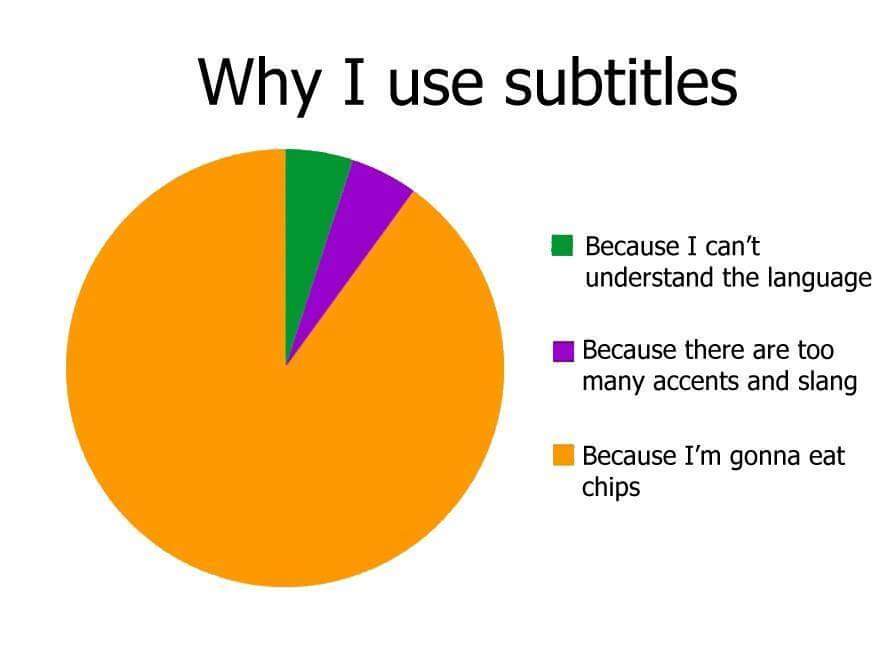
Wednesday, June 30th, 2021A few days ago I posted a graph I found some time ago that jokingly explained the benefits of subtitles in movies and tweeted about it.
Good #a11y features are beneficial for lots of people. pic.twitter.com/2RMnTzseey
— Chris Heilmann codepo8@toot.cafe (@codepo8) June 28, 2021
The tweet went wild and so far has 35 answers, 290 retweets, 1,500 likes and 150,000 impressions. I love that the answers are all about people’s experiences with subtitles and why they choose to turn them on. These range from selfish reasons like being able to only pay half attention to the movie, to people trying to get linguistic nuances and utterly sweet things like being able to watch something without waking up a baby.
Personally, I am a huge fan of captions and subtitles. First of all, I learned English using them. Growing up in Germany, TV is dubbed and you normally don’t get the option to have subtitles. Growing up in the 80s also meant that there was no interactive TV, so all you got was what was on offer. Weirdly enough, one show that wasn’t dubbed was Monty Python’s Flying Circus, which instead came with German subtitles. This was great, as I could listen to the original audio and learn the meaning at the same time. Even more importantly, I learned about pronunciation of the words, not only their meaning. We learn the phonetics of a language by repetition and if you get a native speaker as the source, that’s an excellent start.
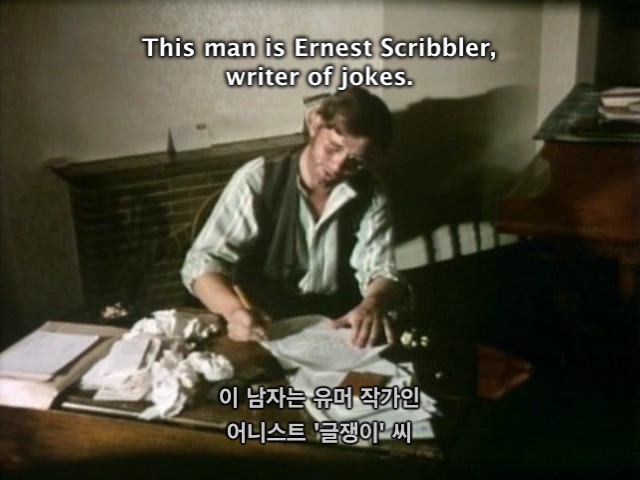
As this was a state channel (all of them were back then) they offered subtitles as an accessibility feature, and it was paid for by the taxes we pay to get access to TV and radio. They were meant to help people who are hard of hearing but were a great way for me to get started learning my first foreign language.
And this is what accessibility features should be in my book: necessary for some, but also beneficial to all. Now, with captions and subtitles, we have a problem. Good ones are expensive, and they seem to be a massive overhead for videos we provide.
However, we also live in amazing times where video platforms create transcripts of videos for us. On YouTube, for example, you only need to define the language of the video and some machine learning product will create a transcript for you. Even when you don’t add alternative text to images, many platforms like Twitter and Facebook will create some automatically generated description added as an “image may contain:” alt attribute.
The problem with those is that they are often full of misunderstandings and not necessarily well structured. The good news is though that most platforms also allow you to export automatically generated transcripts and edit them. Most video hosting platforms also have in-built editors that allow you to verify and tweak the transcript to fix these issues. It is still quite some work to do that, but really worth the effort.
Using these features has a few benefits.
- You can add the transcript not only to the video player but also as a text to the document. This allows visitors to search the video and find what they are looking for. As most video players allow you to jump to a certain time stamp you can link different keywords to certain times and thus allow people to only watch what they need rather than having to scrub through or watch the whole video.
- Some video players even offer a transcript search that makes the video as searchable as an text document.
- Having a transcript also allows people to use their browsers to translate it to their language and thus at least get an idea what you are talking about.
- Search engines can index the transcript and make your web product show up in search results even when people didn’t search for videos.
This kind of thinking is what I try to apply to any accessibility work that I do. We need to make our work accessible anyways, so we may as well try to find ways to make everybody benefit from it. Simpler language, easier interfaces, not overloading the user with lots of information or not using lots of animation means all our visitors have a quicker way to consume what we offer. Accessibility to me means hard-core usability. You make it work for extreme cases and thus make it better for everybody. And by thinking like that, accessibility work isn’t a chore or something we need to do to be legally compliant, but it is a quality feature of our products.
If you want to learn more about how I approach accessibility and how you can test for and fix the most obvious issues using only the browser you already have, you can check out my Tools for Improving Product Accessibility class on Skillshare.