Christian Heilmann

Author Archive

Using Live Server with Developer Tools in Visual Studio Code

Tuesday, November 22nd, 2022
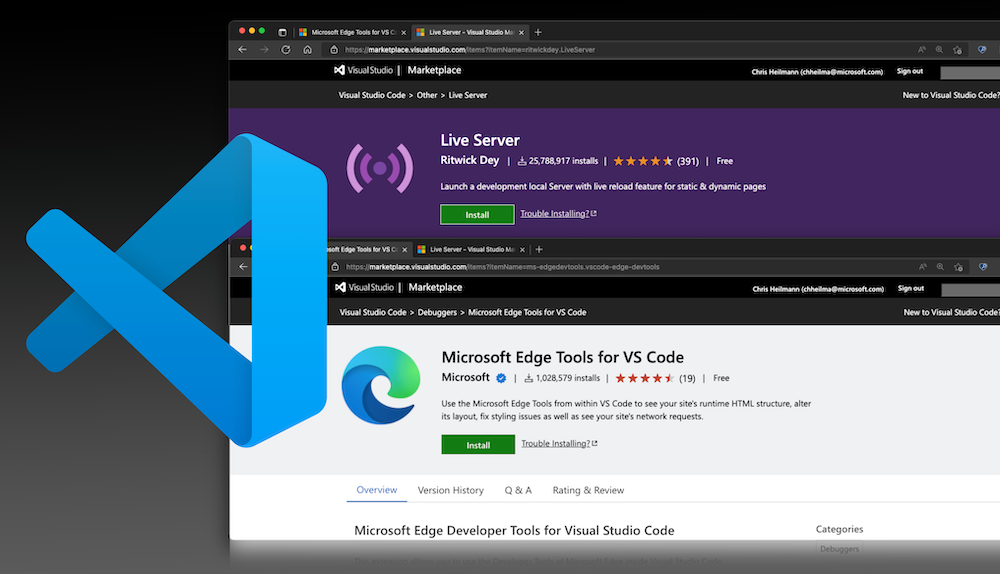
By using the Edge DevTools extension together with Live server in VS Code you don’t only get a server that shows your changes live in the browser, but a browser and developer tools right in the editor

The Live Server extension for Visual Studio code has been installed 25M times and is incredibly useful. It enables you to right-click an HTML document, and it runs a server for you and opens a browser window with the file in it. Any changes you make to the file causes the browser to reload and you can immediately see them – hence “live server”.

The problem is that you still have to jump in between the editor and the browser if you want to debug the project using the browser developer tools.

If you use the Edge DevTools for VS Code in addition to live server, you don’t have that problem. Instead you can:

  • Get a live preview of changes to the file in a browser window right inside VS Code
  • Use the browser developer tools and automatically sync the changes with your source files
  • Get information about issues in your code and how to fix them
  • Get a Console to try out JavaScript or see your `console.log()` messages right in VS Code

You can see this in action in the following video:

The process is not quite straight forward yet, but we’re working on it.

  • Right-click the file you want to open and choose “Open with live server”
  • Copy the location from the URL bar of the browser tab that Live server opened
  • Go back to VS Code and right-click the same file, this time choosing “Open with Edge” and either “Open Browser” or “Open browser with DevTools”
  • In the browser panel that opens, paste the URL from earlier
  • … and that’s it.

What could be done to make that easier? You can chime in on this issue on GitHub to give us some ideas .

Links, 2, 3, 4: Accessibility

Tuesday, November 8th, 2022

Here are some recent links on the topic of accessibility you might enjoy and learn something from:

Removing the camera overlay icon on images in Microsoft Edge

Friday, November 4th, 2022

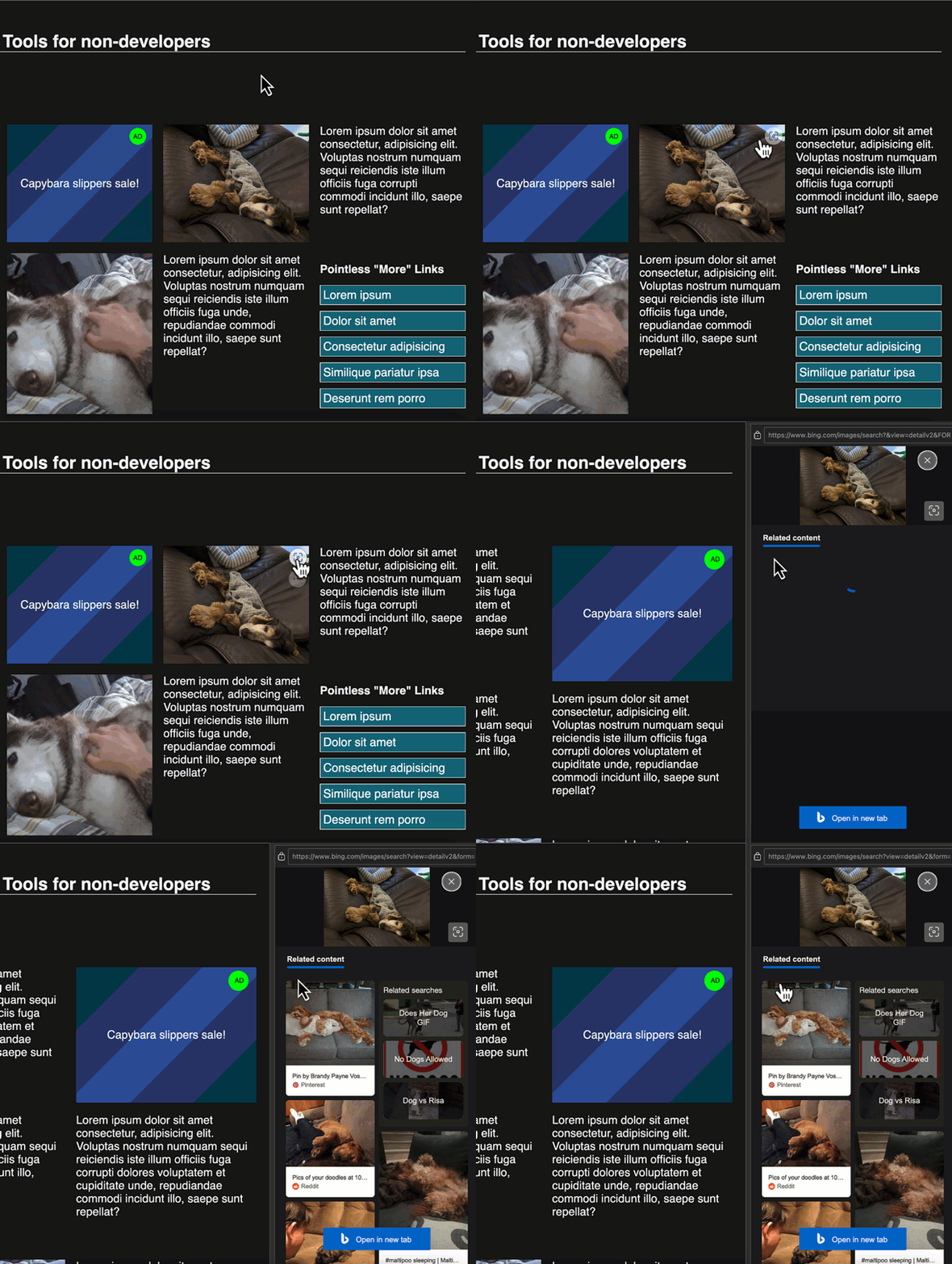
The more options menu of the overlay

If you use Microsoft Edge, you get a camera icon when you hover your mouse over any image:

Camera icon when you hover over an image

This is a great tool for users as it allows them to do a visual search in a sidebar for that image.

Interaction showing more related images in a sidebar

During local development, the icon appears on images, too, but the results don’t show up. That means it interferes with your design and doesn’t work.

If you hover longer over the icon, you can access an overflow menu `…` which allows you to hide the icon for this site, to always hide it, to go to the settings and to give feedback.

More options menu on hover

You can also go to the browser settings edge://settings/appearance/visualSearch to add sites you don’t want to see visual search by hand.

The settings page for visual search

Reminder: JSON.stringify can create Multi-line, formatted and filtered strings from JSON

Friday, October 28th, 2022

demo output of the examples shown here in the browser console

You can use `JSON.stringify()` to turn a JSON object into a string.

let obj = {"a": 1, "b": 3, "c": "boo!"};
console.log(JSON.stringify(obj))

This results in a single line string:

{"a":1,"b":3,"c":"boo!"}

However, you can also set two optional parameters, a filtering array or callback method and an indentation parameter. Setting the indentation to four, for example, creates a multi line string with 4 spaces indentation:

let obj = {"a": 1, "b": 3, "c": "boo!"};
console.log(JSON.stringify(obj, false, 4))

Output:

{
    "a": 1,
    "b": 3,
    "c": "boo!"
}

If instead of spaces you want tabs, you can also defined the indentation parameter as a string:

let obj = {"a": 1, "b": 3, "c": "boo!"};
console.log(JSON.stringify(obj, false, "\t"))

Output:

{
	"a": 1,
	"b": 3,
	"c": "boo!"
}

Or any other string:

let obj = {"a": 1, "b": 3, "c": "boo!"};
console.log(JSON.stringify(obj, false, "xxx"))

Output:

{
xxx"a": 1,
xxx"b": 3,
xxx"c": "boo!"
}

You can define an array of keys you want to show to filter the outcome:

let obj = {"a": 1, "b": 3, "c": "boo!"};
console.log(JSON.stringify(obj, ['a','c'], 4))

Output:

{
    "a": 1,
    "c": "boo!"
}

And you can write a filtering callback function that gets applied to the JSON object. For example, to only allow for numbers to show:

const onlyNumbers = (key,value) => { 
  return (typeof value === 'string')  ? undefined : value 
}
let obj = {"a": 1, "b": 3, "c": "boo!"};
console.log(JSON.stringify(obj, onlyNumbers, 4))

Output:

{
    "a": 1,
    "b": 3
}

You can see more examples on MDN .

Whilst I like these options, it always feels weird to me when a method allows for different values to determine what to do. Having the replacer either be an array or a callback and the spaces option be a number or a string feels confusing. What do you think?

The Developer Advocacy Handbook is now available as an eBook on Leanpub and Amazon Kindle

Thursday, October 27th, 2022

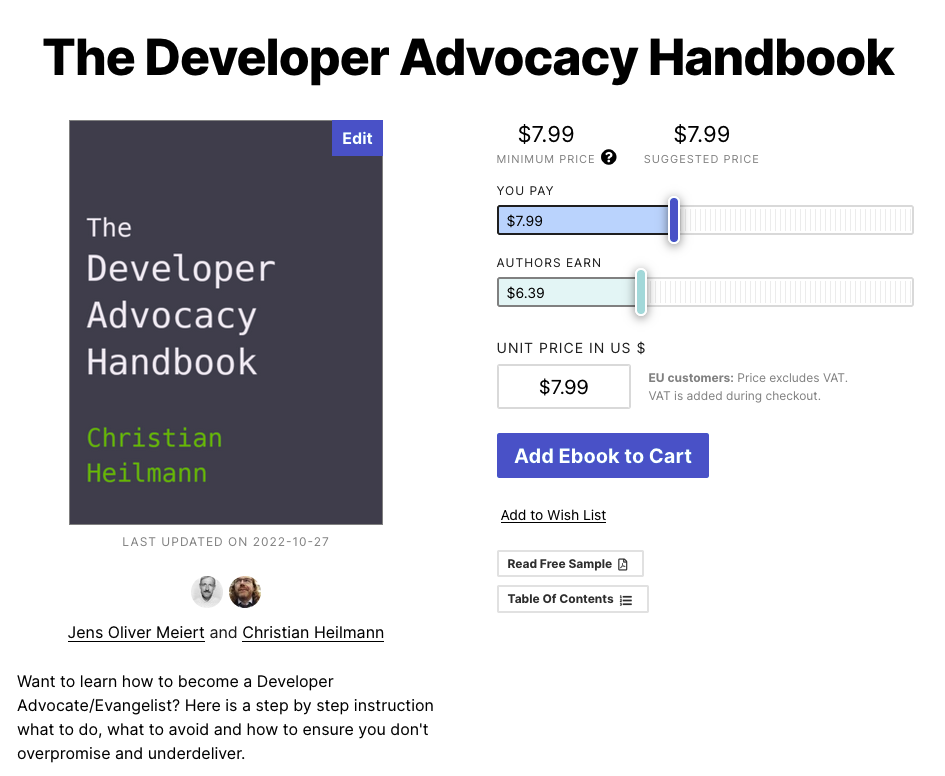
People often asked me if I can make the Developer Advocacy Handbook available as an eBook to read on their devices. When Jens Oliver Meiert also asked me I told him there were no immediate plans, so he took on that task and converted the book. You can now purchase the eBook either on Amazon Kindle or on Leanpub.

Book listing on Leanpub

As a reminder, here is what it is all about:

This handbook will get you on the way to be a great developer advocate for any product or company. Naturally, your approach may need tweaking for different markets and audiences—and in accordance with your own personality—but the main principles are the same for everybody and anywhere in the world. Developer Relations is a rather new market and there are many confusing messages out there what it means to do this job, In this book, the author documented 15 years of Developer Advocacy and how to deal with the demands of the job. Whether you are new to the job, or you feel unhappy in your current role, here you’ll learn how to get started the right way. For people on the job, it is a great way to remind yourself what’s important.