Christian Heilmann

You are currently browsing the archives for the General category.

Archive for the ‘General’ Category

How to persistently change third party web sites with browser developer tools

Tuesday, November 3rd, 2020

This has also been published on Medium and dev.to in case you prefer them.

Often you find things in web sites that annoy you. And – as a web developer – you’re even asked to fix some problems in web sites without getting access to the source.

Using developer tools in browsers you can change a lot of things and you can even fix some issues. You get visual tools to tweak colours, dimensions and more without having to know CSS.

The problem is that the changes aren’t persistent – once you reload the page, they are gone. Furthermore it is tough to make your changes accessible to others short of a screencast or pair programming using live share.

Stuart Langridge complained about that on his blog and longed back for the days of Greasemonkey and Userscripts. Both are still around and to a degree maintained. There are also a few extensions for other browsers than Firefox that do similar things. But the overhead of having to install an extension to do some tweaking seems a lot.

There are some features in browser developer tools that can help you with this task though. Some may be hard to find or you never looked, so here’s an overview.

Elements, Styles and Changes

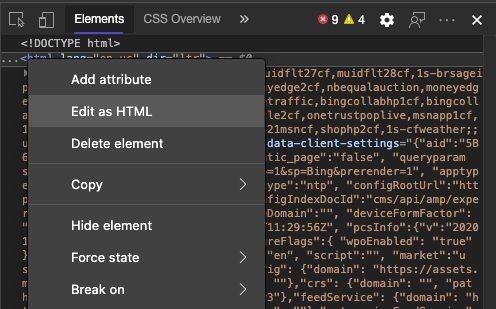
Using the Elements and Styles pane in Developer Tools you can inspect the HTML, and change or add to the styles of a chosen element. Most likely you’ll have done that already, tweaking your CSS until it did exactly what you wanted it to do.

Link to opening the CSS in the Sources pane

What is often forgotten is that if you have bigger changes, you can also click the name of the CSS file and get to the Sources pane where you have a full-fledged editor in the developer tools. The editor will jump to the right line in the CSS file. For minified files the Developer Tools will offer you to get a more human readable version . If that doesn’t happen for some reason you can click the ‘{}’ button instead.

CSS file open in sources pane

Another thing that you may not be aware of is the Changes feature. You don’t need to keep track of what you changed in the CSS when you get back to your source code. In the “Changes” tab you get a difference view of all the changes you did and you can copy and paste them.

The changes pane showing what happened to the CSS file when you used the developer tools

Console

The Console is the go-to JavaScript debugging environment for most (although Breakpoints are so much better). You can also write JavaScript in the console that gets executed in the Window object of the currently open document. You have some handy shortcuts available there. For example $ is document.querySelector, $$ is document.querySelectorAll and $0 is the currently selected element of Developer Tools. The copy() command copies to the clipboard. You can find a list of all the available commands in the docs.

Often you find yourself trying to cram all the code to run against the page into one line, but that’s not needed. If you hit enter on a line that isn’t a full JavaScript expression, Console automatically realises you want to write more and indents the next line. You can also always use Shift-Enter to force linebreaks and hit Enter to execute the code when you’re done. Hitting the up and down arrow allows you go back and forward in the Console history, much like any other Terminal emulator.

You can do clever things in the console. For example, if you wanted to get all the links in the document that have “media” in them and filter out duplicates, you could do the following:

copy(
   [...new Set($$('a')
      .map(l => l.href)
      .filter(l => l.includes('media')))]
  .join("\n")
)

Running this against this page for example will give you a list of 25 unique images.

Whilst this is powerful, you also will lose your work when you restart the browser and the Shift+Enter trick is useful but also feels not natural.

That’s why Developer Tools also have a way to edit and store snippets of code to execute in the context of the current page.

Snippets

Snippets are a feature of the Sources pane in the Developer Tools. It allows you to write small scripts to execute in the context of the current page using a built-in editor. You can name the scripts and keep them as a collection for re-use later on.

Snippets in Developer Tools

This upgrades the Console experience, but you still need to run the script by hand every time you reload the page. And you can’t re-use any of the resources of the page you try to fix. To do this, you can use a feature called Overrides.

Overrides

By using Overrides you can take any resource of the current web site and store it locally on your computer. On later reloads of the document, the browser will take your local copy instead of the live one.

I wrote a detailed explanation how to use them on the official Developer Tools docs and here is a quick screencast explaining the feature.

The excellent part about overrides is that you use the real code of the page and change it. You can select files from the Network tab, directly from the Elements tab or really anywhere. Once you set up your overrides folder these stay in there as replacements until you delete them. The browser creates the correct folder structure for you. This means you can tweak the code and once you are done you can zip up your overrides folder and send it to the site maintainer as a drop-in. It is also an interesting feature to override annoying popup scripts.

More on overrides:

Summary

These are some of the features of Developer Tools that allow you to change web sites for you locally. It is fun to play with live sites and change them to your needs. And running a few scripts locally is most likely safer and less detrimental to the performance of your browser than using overzealous browser extensions.

Back to Basics: Event Delegation

Sunday, November 1st, 2020

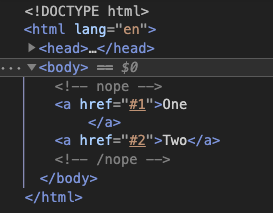
Screenshot of the event delegation example code

Back to basics is a series of small posts where I explain basic, dependency free web techniques I keep using in my projects. These aren’t revelations but helped me over the years to build sturdy, easy to maintain projects.

One of my favourite tricks when it comes to building web interfaces is Event Delegation

Events don’t just happen on the element you apply them to. Instead they go all the way down the DOM tree to the event and back up again. These phases of the event lifecycle are called event bubbling and event capture.

The practical upshot of this is that you don’t need to apply event handlers to every element in the document. Instead, often one handler on a parent element is enough. In the long ago, this was incredibly important as older browsers often had memory leaks connected with event handling.

Say you have a list of links, and instead of following these links you want to do something in code when the user clicks on them:

<ul id="dogs">
  <li><a href="#dog1">Dog1</a></li>
  <li><a href="#dog2">Dog2</a></li>
  <li><a href="#dog3">Dog3</a></li>
  <li><a href="#dog4">Dog4</a></li>
  <li><a href="#dog5">Dog5</a></li>
  <li><a href="#dog6">Dog6</a></li>
  <li><a href="#dog7">Dog7</a></li>
  <li><a href="#dog8">Dog8</a></li>
  <li><a href="#dog9">Dog9</a></li>
  <li><a href="#dog10">Dog10</a></li>
</ul>

You could loop over each of the links and assign a click handler to each:

const linkclicked = (e,l) => {
  console.log(l);
  output.innerHTML = l.innerHTML; 
  e.preventDefault();
};
const assignhandlers = elm => {
  let links = document.querySelectorAll(`${elm} a`);
  links.forEach(l => {
    l.addEventListener('click', e => {linkclicked(e,l)});
  });
}
assignhandlers('#dogs');

You can try this event handling example here and the code is available on GitHub (event.handling.html).

This works, but there are two problems:

1. When the content of the list changes, you need to re-index the list (as in, call assignhandlers() once more)
2. You only react to the links being clicked, if you also want to do something when the list items are clicked you need to assign even more handlers.

You can try this by clicking the “Toggle more dogs” button in the example. It adds more items to the list and when you click them, nothing happens.

With event delegation, this is much easier:

document.querySelector('#dogs').
  addEventListener('click', e => {
    // What was clicked?
    let t = e.target; 
    // does it have an href?
    if (t.href) { 
      console.log(t.innerText); // f.e. "Dog5"  
      output.innerHTML = t.innerText; 
    }
    // if the list item was clicked
    if (t.nodeName === 'LI') { 
      // print out the link
      console.log(t.innerHTML);
      output.innerHTML = t.innerHTML; 
    }
  e.preventDefault(); // Don't follow the links
});

You can try this event delegation example here and the code is available on GitHub (event-delegation.html). If you now click the “Toggle more dogs” button, and click any of the links with puppies, you’ll see what it still works.

There are a few things you can do to determine what element the click event happened on. The most important bit here is the “let t = e.target;” line, which stores the element that is currently reported by the event capturing/bubbling cycle. If I want to react to a link, I check if a “href” exists on the target. If I want to react to a list item, I compare the ‘nodeName’ to ‘LI’. Notice that node names are always uppercase if you do that kind of checking.

I really like event delegation as it gives me a lot more flexibility and I don’t have to worry about changes in content. The handler just lies in wait until it is needed.

Writing a dog picture browser in ~200 lines of code

Thursday, October 29th, 2020

Dogs are excellent, and great people. When I came across the Dog.ceo API of free dog images sorted by breed the other day, I had to do something with it. So I did. I give you the dog browser:


Dog browser Desktop version
Dog Browser Mobile version

You use it by clicking the image to get a random dog picture or typing into the box to select the breed and filter the results.

You can check the source on GitHub and play with it yourself.

Here’s how I went on about it…

Getting the data

Looking through the API documentation I found three endpoints I needed to play with:

The data is in JSON and pretty straight forward, it is an object with a status and a message property. For image lookups the message is the URL to the image. For the “all breeds” lookup an object with all the names as keys and an array of possible sub-breeds. One annoyance is that the breeds are in lowercase.

Planning the HTML

I wanted a way to display the image of the dog, its breed and allow the user to filter by breed.

Buttons are great, because they are keyboard and mouse accessible. They also can contain any other HTML element. For the display of the image I chose the following:

<button class="loading">
  <h2></h2>
  <img src="" alt="Good boy/girl">
  <p>Click for more dogs!</p>
</button>

This makes the hit area for people to choose the next image as big as I want it to be.

For choosing the breed, I had the problem that the list of breeds is huge and there may be sub-breeds. At first, I thought of a select box that shows a second one when there is a sub-breed available. That is both cumbersome to use and annoying to develop. So I chose an input element connected to a datalist. This is HTML5’s autocomplete.

<form>
  <label for="breed">Dog breed:</label>
  <input list="allbreeds" id="breed"></input>
  <datalist id="allbreeds"></datalist> 
  </form>

Styling the interface (treats.css)

You can take a look at the source of the CSS for all its glory (or lack thereof), but I used a few tricks that may be of interest.

button {
  max-width: 90vw;
  min-height: 50vh;
  width: 100%;
  cursor: pointer;
  position: relative;
  /* … More … */
}

I give the button a minimal height of half the screen and limit it to 90 % of the window. I give it a cursor of pointer to tell people to click. And I position it relative to allow for some clever loading message styling later on.

button img {
  border-radius: 10px;
  margin: 0 auto;
  object-fit: contain;
  max-height: 60vh;
  min-height: 200px;
  max-width: 90%;
}

I give the img a max and min height and a max width that gives it some breathing space. The object-fit: contain ensures that the image doesn’t get stretched.

button.loading img {
  opacity: 0;
}

During loading I hide the image just as a nice to have. Talking about loading, here’s a neat little way to create a “loading” overlay.

button.loading:after {
  border-radius: 10px;
  display: flex;
  flex-direction: column;
  justify-content: center;
  content: 'Loading...';
  background: rgba(0,0,0,.8);
  color: white;
  position: absolute;
  top: 0; left: 0; 
  right: 0; bottom: 0;
}

As the button has a position of relative, we can create the overlay using CSS generated content. We position it absolutely and set top, left, right and bottom to 0. This covers the whole button and makes sure users can’t click it again while the image loads. The flex settings ensure that the “Loading…” message is bang in the centre.

button.error:before {
  content: '&#x26a0;&#xfe0f; Oh no! No dogs found, try another breed!';
  color: firebrick;
  display: block;
  margin: 5px;
  border: 2px solid darkred;
}

I also use CSS generated content for an error state.

One last thing is a media query to display the form next to the button when there is enough space or above on smaller devices:

@media (min-width:600px) {
  section {display: flex;}
}

Making it work with JavaScript (walkies.js)

I may change this code in the future, so make sure to check the source on GitHub from time to time, but here we go.

const breed = document.querySelector('#breed');
const imagecontainer = document.querySelector('button img');
const breedinfo = document.querySelector('h2');
const button = document.querySelector('button');
const datalist = document.querySelector('#allbreeds');
 
let url = 'https://dog.ceo/api/breeds/image/random';

I store references to all the HTML elements the script will touch. I like doing that as it means I can change the HTML later on.

I define the URL to get images from as the one giving you a random dog picture.

const getbreeds = breeds => {
 fetch('https://dog.ceo/api/breeds/list/all')
  .then(response => response.json())
  .then(data => {
     seedbreedsform(data.message);
   })
};

The getbreeds function uses the API to get all the names of available dog breeds. I use fetch() (naturally) to load the JSON, parse it and send the result to the seedbreedsform() function to seed the form with this data.

const ucfirst = str => {
  return str.charAt(0).toUpperCase() + str.slice(1);
}

One annoyance of datalist is that it can’t get styled. As the dog breeds are all lowercase in the API, I’m using a small function to capitalise the breed and sub breed. With dropdowns this could be done in CSS (its natural place) and hopefully we will get there one day.

const seedbreedsform = breeds => {
  let out = '';
  Object.keys(breeds).forEach(b => {
    out += `<option value="${ucfirst(b)}"/>`;
    breeds[b].forEach(s => {
      out += `<option value="${ucfirst(b)} - ${ucfirst(s)}"/>`;
    });
  });
  datalist.innerHTML = out;
  breed.addEventListener('change', findbreed);
};

I loop over all the keys of the breeds object the API returned and create an option in the datalist for each. The keys are the names of the breeds. If there are sub-breeds their value is an array of more breeds. I loop over these arrays and create an option with the value of “Breed – sub-breed”. Once all the options are there, I set the innerHTML of the datalist to the resulting string. This, effectively, gives the user an autocomplete of all the available breeds.

I add an event listener calling findbreed when the user selects a breed from the autocomplete.

const findbreed = _ => {
  let name = breed.value;
  name = name.replace(' - ', '/').toLowerCase();
  url = `https://dog.ceo/api/breed/${name}/images/random`
  getdog(); 
};

As the value of the input element is the readable version of the data, I have to undo this. I replace the ” – ” with a slash, lowercase the whole string and assemble the URL to get the image from the API. I change the URL to this more specific one and call the getdog function.

button.addEventListener('click', getdog);  
imagecontainer.addEventListener('load', e => {
  button.classList.remove('loading');
});

The getdog function is the main function to load an image and add it to the button element. When I click the button again, I’d want another image. Thus, I need to add an event handler to the button to call it. The getdog function changes the src attribute of the image container to load an image. That’s why I need a load event handler on the image to change the state from loading to finished.

const getdog = _ => {
  button.classList.remove('error');
  button.classList.add('loading');
  fetch(url)
  .then(response => {
    if (response.ok) {
      return response.json();
    } else {
      button.classList.remove('loading');
      button.classList.add('error');
    }
  })
  .then((data) => {
    imagecontainer.src = `${data.message}`;
    let bits = data.message.split('/');
    bits = bits[bits.length-2]
           .split('-')
           .map(b => ucfirst(b))
           .join(' - ');
    breedinfo.innerText = bits;
  })
};

I remove any error CSS classes that may be applied to the button and add a ‘loading’ one. I then call the API using fetch.

If the response is not good I remove the ‘loading’ class and add an ‘error’ one.

If the response is ‘ok’, I set the src of the image in the button to the message that came back from the API (the URL of the image). I then need to do some conversion to display the breed of the current, random dog image.

Here’s how that works:

URLs could be a mix of one breed dogs or sub breed dogs. Those with a sub breed have a hyphen in them. For example:

https://images.dog.ceo/breeds/cockapoo/Scout.jpg
https://images.dog.ceo/breeds/spaniel-cocker/n02102318_5690.jpg

I split the url at the slashes, and get the one before the last one, in this case “cockapoo” or “spaniel-cocker”. I split this one at the hyphen and send each to ucfirst to capitalise them. I then join them again with a ” – ” and display the resulting string.

The last thing to do is to make sure that any error in the form submission doesn’t reload the page.

document.querySelector('form').addEventListener('submit', e => {
  e.preventDefault();
});

And to load the first dog image and get the list of breeds.

getdog();
getbreeds();

Fun with web standards

There you go. A dog browser in a few lines of CSS and JavaScript and with zero dependencies (except for the dog API, of course). I am pretty sure this can be improved a lot, but I had fun doing it and it is wonderful to see what the web comes with out-of-the box.

Getting dicey – how I failed to write a perfect dice throw simulator and how that is totally OK

Monday, October 19th, 2020

Yesterday we wanted to play some dice games and I realised I had none in my house. So I spent a bit of time on developing a Dice Throw Simulator

A dice throw simulator in the browser.

The code is also available on GitHub and probably nothing to win a job interview with, but it was fun to do, and hopefully you’ll also find it at least interesting.

The fascinating bit to me about doing something like this is the predictability of responses. The biggest thing developers love to get riled up about is that Math.random() doesn’t really give you any proper random results. The next bit that always comes is why I didn’t use a 3D library to make some really cool 3D rolling dice. All of this has been discussed to death quite some time ago, so here is why I developed yet another dice simulation that is horribly flawed.

  • It was fun!
  • I got myself more familiar with vw sizing and flexbox doing it
  • I found out the Firefox is OK with translate values not having a comma in between them whereas Chromium complains
  • I once again fell in love with focus-within and labels automatically connecting huge screen estate with a tiny checkbox
  • I really like how powerful JavaScript is these days. Gone is the need to test if something is supported and how. I find myself using a lot less if statements than ever
  • Using GitHub and GitHub Pages means I don’t need to spend any money on hosting
  • I wanted a way to lock some dice in and re-throw, much like you would when you leave them out of the cup to get to a certain goal. Both Google’s excellent solution and Random.org’s much more random solution don’t have that feature.
  • None of these can ever replace the fun that is throwing some physical dice around a cup and tilting it over. Or learning about new parts of your flat when once again one of them rolled off the table.

Do you also want to code something just for fun? Do it! Don’t get discouraged by people who always know a way to make it better – that’s the easy part.

“How normal am I” is an excellent security and privacy resource about Artificial Intelligence on the web

Thursday, October 8th, 2020

https://www.hownormalami.eu is amazing.

Funded by the EU, it asks you to share your camera and then continues to tell you what different “AI” algorithms think of you – age, gender, BMI and so forth. It shows a video at the same time explaining what is being analysed and how these algorithms fail. It does some more clever things in terms of privacy but I don’t want to spoil it. If you want to get an insight into what is being recorded of you and how skewed the information is, this is a great resource. Thanks to Emily Holweck for sending it to me.