Christian Heilmann

Author Archive

A teleprompter script for video recordings

Wednesday, May 25th, 2022

Currently I am recording a lot of videos and I found the fastest way to do them is to write the script and read it out to my camera and then record screencasts and edit them to fit the narration. In order to make sure I read from the top of the screen and reading into the camera I had to scroll my scripts a lot, which was annoying so I wrote a small teleprompter script to work around that problem.

You get a text box to write or paste your script and pressing the “show as prompt” button will display one paragraph at a time at the top of the screen in a large font. You can click the document or press the right arrow key to move forward and Escape to go back to editing.

The prompter script in action

If you go to https://codepo8.github.io/prompter/ you can see it in action and the source is also on GitHub. It is nothing fancy and a lot was written by GitHub CoPilot for me anyways.

Global Accessbility Awareness Day – Does your web product support the needs of the many?

Thursday, May 19th, 2022
You never create one product on the web – you create a product that people can change to their needs. At least you should.

I’ve been working on the web since 1997 and one thing I realised early on is a big basic idea of the web:

You do not control how your web product is consumed by your users – it is up to you to make sure people can change it to their needs.

As advocates of a usable web by everybody this was and still is the most misunderstood concept. I don’t know if it is because web design originated from print design. Or it may be because Flash promised to allow you to convert any design to the web. Or it just is because people don’t feel like looking past their own experiences. Or it is pragmatism, people know they don’t have time to make a product that adapts to users needs, so they build what they can. Or it is arrogance and a lack of repercussion. We keep telling people that they can be sued if their product “isn’t accessible”. But the reality is that there aren’t many successful court cases with real repercussions or fatal brand impact. Most ended up settled outside of court.

It doesn’t matter though, as the fact remains that people have to and will change the way your product looks to make it available to them. And it is a terrible thing to do to block someone out, although they already took a lot of steps to try to consume what you have to offer.

So here are a few things you can do to spot check if what you build works for as many people as possible.

  • Resize the font to 300% (Ctrl + Plus) and see if you can still use your product
  • Don’t use a mouse, try to navigate with keyboard alone
  • Blur the screen (or squint) and see if the most important bits of interaction are still obvious.
  • Play with the accessibility features of your OS and see what people user (Screen magnifier, high contrast mode, screen reader)
  • Check your web site in reader mode of the browser and see if all the features it ripped out are actually that important, or if you could get rid of them for all your users
  • Use the emulation in developer tools of your browser to spot-check how different users may experience your product

I wrote a detailed article on the DevTools for Edge documentation site on how to do that. There is also a cross-reference to tell you what tool you can use to test for which accessibility issue .

And there’s a whole course on Skillshare about Product Management: Tools for Improving Product Accessibility if you like videos better.

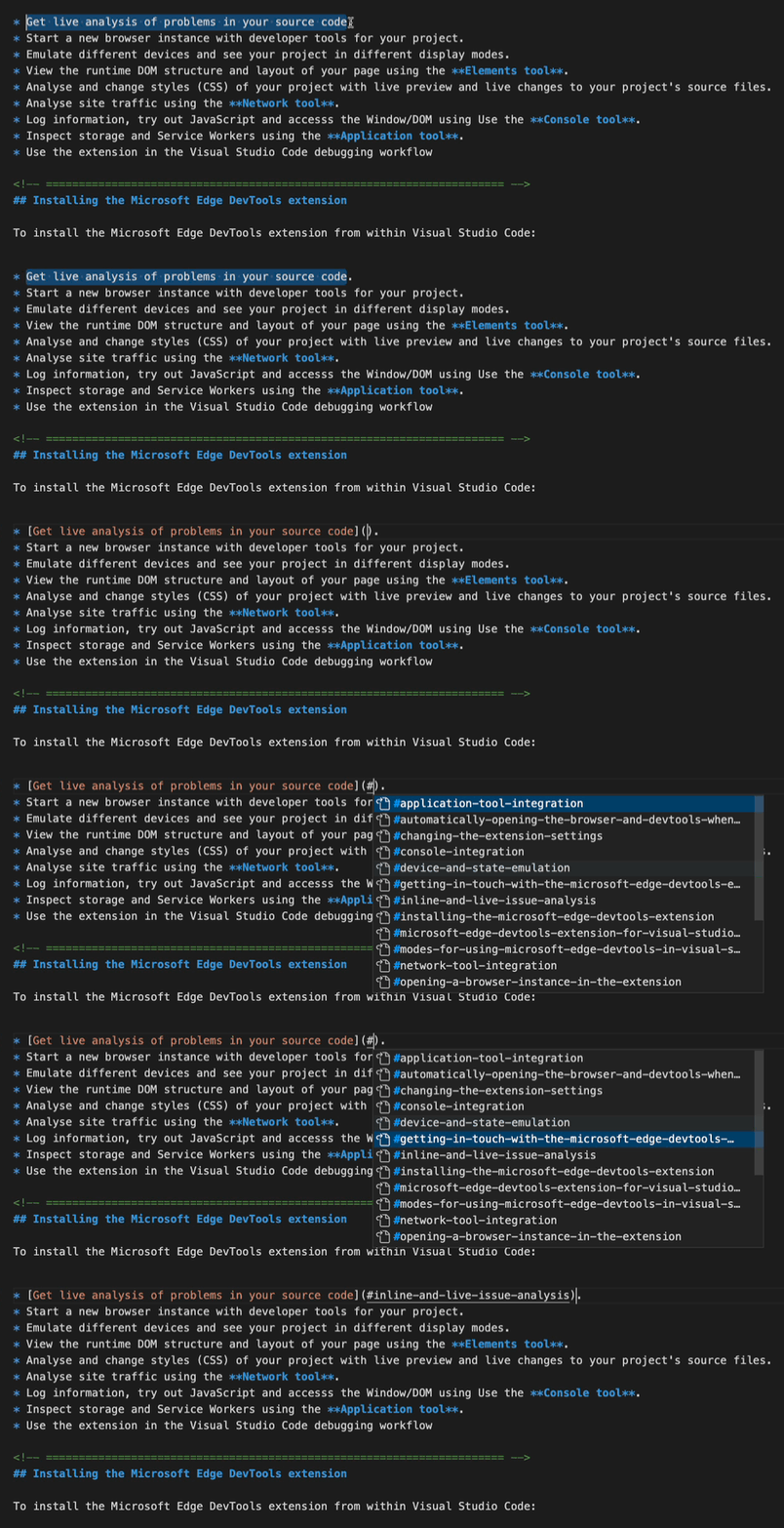
It is annoying that the accessibility emulation features are scattered amongst different tools in Developer Tools right now (Issues, Elements, Rendering…) and we’re working on a better way to do that. The DevTools for VS Code extension tried to do a better job with that by showing accessibility issues right in your source code:

Live issue reporting flaging up a problem in the source code

The embedded browser also offers mode emulation and visual deficiencies emulation as a toolbar on the bottom rather than only part of the main tools drawer.

The new emulation bar of the browser preview

First is the device list. You can select from a wide range of different emulated devices.

Device list showing various mobile phones and tablets

The magic wand menu allows you to simulate various CSS media queries, like print mode, dark/light mode or even simulate a forced colours (high contrast) environment. If you want to know more about forced colours, check this incredible article .

The CSS emulation showing the document in forced colour mode with the menu offering other emulations

The last menu (currently using the eye icon) allows you to simulate different visual impairments, like seeing the page in a blurred fashion or in different “colour blindness” emulations.

The page being displayed in a blurred fashion and the menu offering more visual emulations

We’d love to get more feedback on that and see if rolling that out in the main browser would also help you get a better understanding of what could be necessary for people to do to your product to make it accessible to them.

Fixing the accessibility of Inspection overlays

Tuesday, May 17th, 2022

The Inspect tool is a great way to get information about different page elements before selecting then. Once it is enabled, it shows an information overlay as you move from element to element.

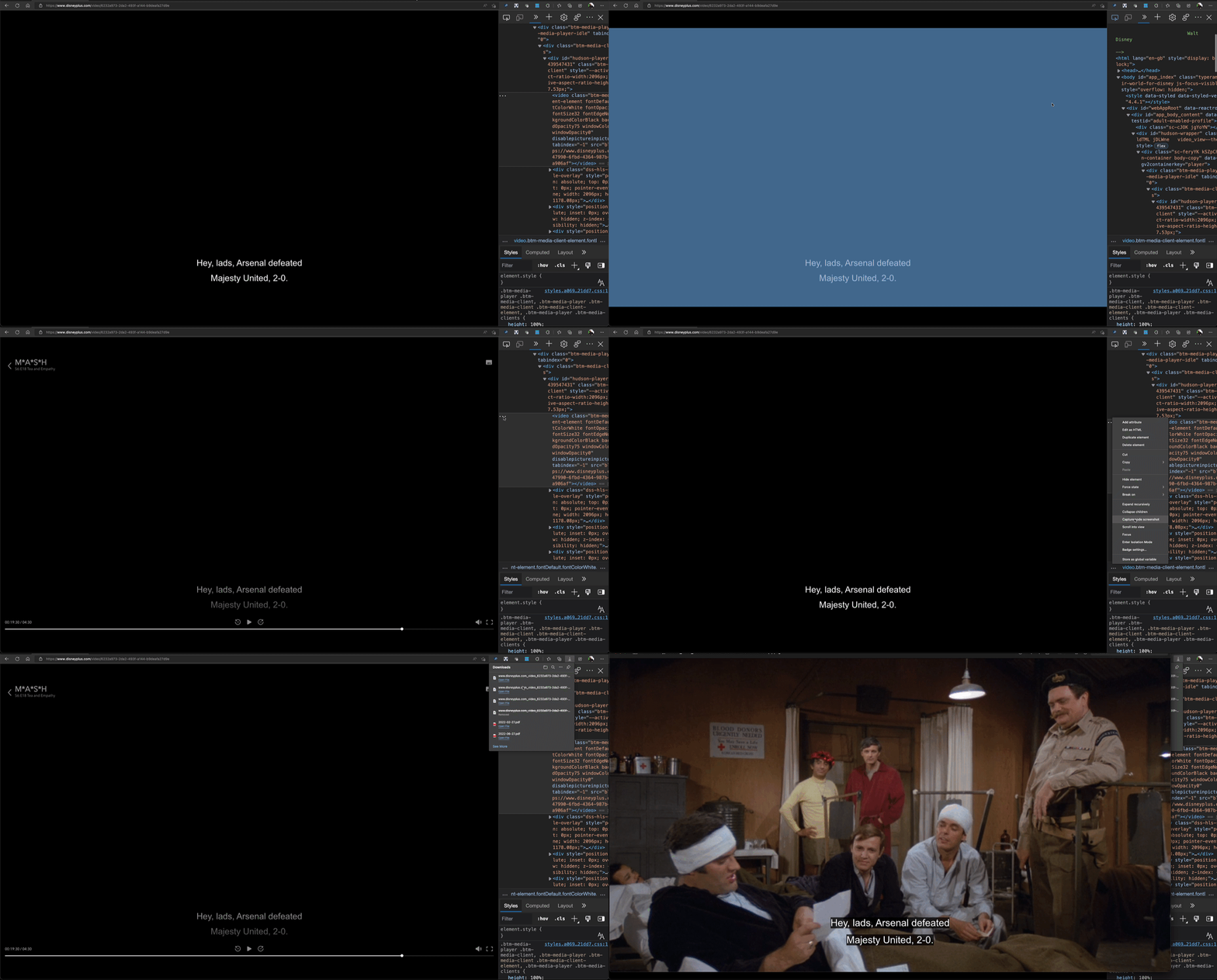
Recording of the inspect tool in action

The main problem with the tool is that sometimes it is tough to get the information about the right element, as they are too close together and the information overlay shows the next element once the mouse moved a bit.

Whilst this can be annoying for any user, it becomes unusable for those who need to zoom the interface. In zoom mode, you magnify part of the screen and the magnification window moves with the mouse cursor. As the mouse cursor moves, the information overlay disappears, so you end up in a frustrating endless loop.

We got a report of this as an accessibility issue in Microsoft Edge and fixed it. From Edge 102 onwards, you can now press Ctrl+Alt when you have an information overlay active to stop it from disappearing. This makes this tool also usable to screen magnification users as shown in this screencast. It starts with the current interaction and then shows what happens when you press Ctrl+Alt and move the mouse around.

Information overlay in magnification mode

This also makes it easier for all users to get the information of Elements close to another. As an extra, you can also press Ctrl when you move the mouse around to only highlight the different elements and suppress the information overlay. This cuts down on a lot of noise.

Pressing Ctrl while moving the inspect tool around doesn't show any information overlays

This change shows that by fixing an issue for users of assistive technology, you can make it a better experience for everybody.

The problem has also been filed as a bug on the Chromium project .

A “Quick Edit” bookmarklet to make changes to any web site

Thursday, May 12th, 2022

Using the Quick edit bookmarklet you can make any web site editable. Drag it to your favourites toolbar, click it and you get into edit mode. You can edit, copy and paste, delete and anything else. Hitting `ESC` will end edit mode.

Quick edit in action - drag it to your toolbar, click it and start editing the page. Hitting ESC end the editing mode

You can use this to quickly edit web sites before taking a screenshot, for example.

The source code is available on GitHub

Someone should build X for the web” – why not you? All you need is a GitHub account

Monday, May 9th, 2022

Last week, Šime Vidas complained on Twitter that it is hard to paste a block of text on a mobile device. I proposed to use pastebin.com but that needs a lot of taps before you paste. Šime then proceeded to joke that we should create pastebinzero.com and all it needs is a full-screen textarea with autofocus.

So I spent literally a minute to build this. In my browser, with nothing but a GitHub login. From setup, to coding with autocomplete support to hosting. You can see it in all its glory at https://codepo8.github.io/pastebinzero and look at the code at https://github.com/codepo8/pastebinzero.

And you can do that, too. Here is how.

If you feel like seeing this as a video, check out the following ~2 minutes walkthrough.

Otherwise, here are the steps to start, build and host any HTML/CSS/JavaScript based project on GitHub.

  • Go to your GitHub profile, click on `Repositories` and press the “New” button Animation of creating a new repository in GitHub
  • You need to name the repository, as this will later on also be part of the URL. GitHub automatically tells you if the repo name is still available or not. Make sure that your repo is public and hit “Create Repository”. If you don’t want to show the source code but only have people see the result, you can also keep it private. The generated GitHub pages are always public. Animation of naming and creating the new repository
  • This created the repository and you get all kind of information what to do next. For now, click `creating a new file` link. Animation of creating a new file in a GitHub repository
  • Name the file `index.html` and enter anything as the content. This isn’t important now as this editor here is OK to do some quick fixes, but doesn’t cut the mustard. Press the `Commit new file` button and you get a new file. Animation of creating an index file in the repository
  • Go to the `Settings` tab and select the `Pages` menu item. Make sure to pick the `main` branch from the dropdown menu and hit `save`. This makes what you are working on available as a URL on the web Animation of publishing pages on GitHub
  • Go back to the `Code` part of the repository and press the `.` button. This loads Visual Studio Code in the browser with this project open. You can now write your project using the full power of VS Code, including autocompletion and IntelliSense. Animation of opening VS code in the repository and editing the file
  • Once you are done, go to the `Source Control` option in VS code, enter a commit message and click the checkmark. This commits the changes to the repository. Animation of adding a commit message and submitting the file
  • You can see when your product is available online on the “Actions” tab of your repository. Check the “Pages build and deployment” workflow. It shows a yellow spinner until the page is ready. When it turns into a green checkmark your page is ready. Animation of the build process showing in the Actions tab of GitHub

For the video demo, the code is available at https://github.com/codepo8/greencircle and the in-browser version can be seen at https://codepo8.github.io/greencircle where `codepo8` is my GitHub user name and `greencircle` the name of the repository

Why not codepen, jsbin, codesandbox, jsfiddle… ?

There are dozens of places you can host and edit projects online and all of them have their benefits and problems. I really enjoy this way as it gives me the full functionality of Visual Studio Code and my project is in version control. I own all the code and can download it any time I want to. I can also allow other people to fork and change it.

Many of these features are also available in the other platforms and I really like that you can immediately see the results of your projects as you code them. But this feels like a great end-to-end solution requiring only one login I need for most of my work anyways. Incidently, if you want the immediate display of your project inside VS Code in the browser, you can also install the “Codeswing” :https://aka.ms/codeswing extension.