Christian Heilmann

Author Archive

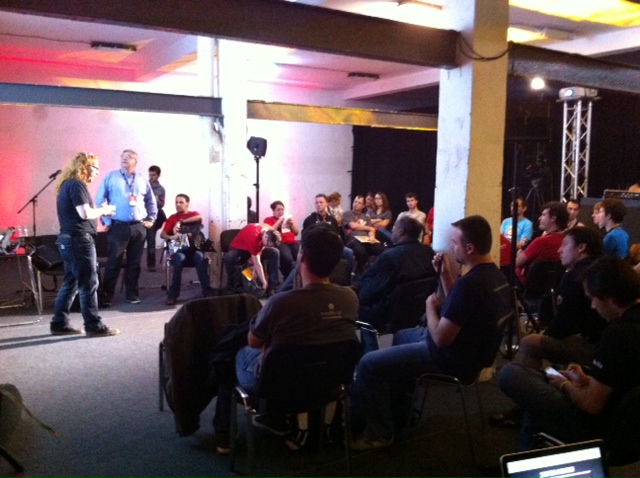
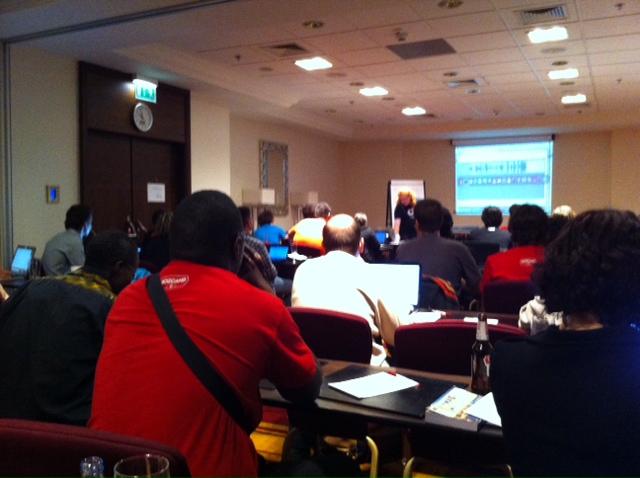
Mozilla, the web and you at Campus Party Europe

Saturday, August 25th, 2012

I just got to edit and upload the slides and screencast of my talk at campusparty europe, so here you go:

Campusparty are live streaming and recording the talks. Here is mine but sadly enough there is quite a chunk of audio missing and it seems To be out of sync later on.

I also recorded my own screencast on YouTube with audio that is a bit on the loud side so turn down your headphones:

The slides are available on SlideShare:

There is also a slide version with notes available on Slideshare.

Being a better web citizen: complain where things get fixed

Monday, August 20th, 2012

We like to complain. It feels good, it feels like we are doing something that will make things better. The problem is though, if we don’t complain where things can be changed we are not making things better. In a lot of cases we make them worse. In almost all cases where we don’t complain at the source we actually make people feel worse and share our frustration rather than initiate change.

The right to complain

I remember when that volcano in Iceland erupted and messed with all the flights in Europe. I was scheduled to come back from San Francisco and got sent to 3 different airports in the US. I was in Chicago in a totally rammed airport and queueing up to get a new ticket with about fifty people before me and two hundred or more behind me. A group of three people in front of me had their tickets already and yet were in the queue for the ticket counter. I asked them what they are doing here as they do have their tickets, wondering if I was in the right queue. I was. Their answer was “yeah, we want to complain about the delays!”. I handed them my phone to write an email to the airline and explained that complaining to the person behind the ticket counter about a thing that is incredibly obvious doesn’t help them or the already freaking out person who is faced with a line of 200+ people they probably can not help easily. I was unlucky. Logic doesn’t count when there is exercising the right to complain to be done. It is just another sense of entitlement people seem to need to excercise or else they don’t feel like they are being appreciated. Or something.

Complain where work is being done

In any case, on the web and when it comes to web development or web technology issues it is ridiculously easy to complain where a complaint makes sense and will result in a change that makes things better for everybody. If there is a GitHub repository and you have a problem with the code, file an issue. If you have something that bothers you with browsers, file a bug.

This is the only place where you should bring your worries. In a lot of cases you will find that other people had the same gripes and they have been fixed or need a certain trick to work. Anything else you do is add to the noise of the internet without causing any change. Actually, you might expect others to do work for you.

This is one thing I changed in my behaviour on Twitter and elsewhere lately – and so far it did me only good. We do not need conversations about seemingly broken issues of products without the people who create and maintain the product being involved. If they are hard to reach, then this is what should be fixed. Complaining about details to people who might be able to tell the people who should fix the issues doesn’t mean they will get them – it just means you frustrate even more people.

So next time you find yourself feeling the need to exercise the right to complain – or just feel like venting – spend some time finding the right person to complain to. A lot of times you find your anger is less than you initially think it is and many a time you will find that you did something wrong in the first place.

Got a comment? Add to the thread on Google+

Datatable to barchart without images, libraries or plugins

Thursday, August 16th, 2012

Following the results of a survey on library use by developers I was asked to make it easier to do a head to head comparison of the data of one of the questions. I thought it’d be interesting to start a dynamic bar chart from scratch and it is incredible just how easy these things are nowadays.

Animated barchart from datatable example

Here is the final result:

The code is available on GitHub and you can see it in action there, too.

Check the code comments to see what I did – there is no magic in there, just using what browsers give us these days.

There is a bit more to it as I explain in this Screencast on YouTube:

If you don’t want the barcharts to show up but check if meter or progress is supported instead, add a parameter to the URL:

This is an interesting little demo as you’d probably be tempted to use meter from the get-go, but thinking about the data here makes a data table the best starting point.

Browsers have a presenter mode: console info!

Wednesday, August 15th, 2012

Working on creating a re-usable slide deck for the Mozilla Evangelism Reps I played with HTML slides, this time using Shower as I like the list view of it. And once again as explained in the past I found myself in the pickle of adding presenter notes to the slides that presenters could look up when rehearsing the slides and whilst presenting. This is a use case that HTML is not quite meant to cover – especially multi-screen.

Paul Rouget and Anthony Ricaud’s DZSlides solve that problem by embedding the slide deck in a “presenter” page that sends post messages from one window to another. This is totally sexy from a JS geek point of view but I found it tough to set up.

Analysing what we use to present I realised that there is no need for any extras, really, as browsers these days come with an amazing thing called console.

You can use the console of browsers to have messages on a second screen not visible to the audience as debuggers can be in own windows. It is as simple as that :)

So I extended shower a bit. Every slide now gets a footer with notes:

<div id="morethanfirefox" class="slide"><div>
  <section>
    <header>
      <h2>Ongoing work&hellip;</h2>
    </header>
    <img src="pictures/mozillamore.png" class="middle" alt="Mozilla is more than Firefox">
 
    <footer class="notes">
      Mozilla is much more than Firefox though. We are a not-for-profit organisation to 
      promote the open web. This means we educate people on how to publish content and 
      we protect people's privacy and identity and choice on the web.
    </footer>
 
  </section>
</div></div>

I hide the notes in full mode and for rehearsal in list mode I just added a hover state:

/* Notes */		
.full .notes {
	display:none;
	}
.list .notes {
	background: #fff;
	padding: 5px 10px;
	z-index: 10;
	display: block;
	position: absolute;
	bottom: -500px;
	left: 50px;
	right: 50px;
	-webkit-transition: bottom .5s;
	-moz-transition: bottom .5s;
	-ms-transition: bottom .5s;
	-o-transition: bottom .5s;
	transition: bottom .5s;
}
.list .slide:hover .notes {
	bottom: 15px;
}

During viewing the script then reads the notes and adds them to the console as an info. As an extra I also read the next heading as a “coming up”:

function lognotes(slideNumber) {
  if (window.console && slideList[slideNumber]) {
    var notes = document.querySelector('#'+
                slideList[slideNumber].id + 
                ' .notes');
    if (notes) {
      console.info(notes.innerHTML.replace(/\n\s+/g,'\n'))
    }
    if (slideList[slideNumber+1]) {
      var next = document.querySelector('#'+
                 slideList[slideNumber + 1].id + 
                 ' header');
      if (next) {
        next = next.innerHTML.replace(/^\s+|<[^>]+>/g,'');
        console.info('NEXT: ' + next);
      }
    }
  }
}

During presenting you can now just open the console and move it to the other screen. As the main screen will be the one you show on the wall you also have no issue recording the session (something that keynote gets wrong).

(Ab)using developer tools as presenter view

This trick could be used for any of your scripts – just add the infos and have the debugger open on your laptop while your boss marvels at you presenting the product. You can read the hints you add on every click in the interface.

The revelation to me in this case was that the console and debugger are exactly the other screen we need for presenting and a very easy way to keep the interaction in the main window and get information in the other. You got to love browsers these days.

Check it out in action in this screencast:

The myth of the “portable presentation” in slide form

Thursday, August 9th, 2012

During our Evangelism Reps training in Brazil I got asked a few times what the best format for presentations is. Of course this was related to creating your slides in HTML5 vs. closed formats.

HTML5 slide systems are all the rage. Everybody and their dog creates one. I’ve blogged about them in the past and the limitations they have and a lot of the requests I had went into some of them. Probably the most feature complete is DZSlides. However, when you think about it – a lot of them are based on the false assumption that speakers preparing their slides want to write them rather than design or create them. In other words, slide systems are fun, but if they don’t come with a visual editor, they are also a geek toy to keep us busy doing another clever thing with web standards rather than solving a problem people have. You should concentrate on making the slides aid your talk, and not on coding them and spending a lot of time resizing images, uploading lots of files and positioning elements in CSS.

Slides are only a nice to have

Slides are there to help the flow of your presentation as a speaker. They are a backdrop. Not more, not less. If your slides have all the content and you are reading from them you are redundant as a speaker. If you rely on transitions and shiny animations in your slides you are a showman, not a presenter. The best presenters out there don’t need slides – they only use them to add flair to an already engaging presentation. That said, slides can help a lot in environments where your message may not easily come across – for example when the audience speaks another language and your native speed and idioms might be too much for them.

Distributing slides without any context doesn’t make any sense – it actually can cause more confusion than help. You have to ask yourself what you want to achieve with your talk.

Presentations for presenting

If all you want to do is give a keynote, the format of your slides is irrelevant. You need to make sure that the slides will work in the resolution and quality of the projector at the venue you speak at. Maybe make sure you have a copy on a stick in case your computer craps out on you or doesn’t connect to the projector. Test that your slides work (especially embedded videos in Powerpoint have an annoying way of not showing up on projectors) and be ready to not have the slides available if anything goes wrong. You should have a talk ready, remember the slides are a backdrop.

Presentations for distribution

So what if you want to distribute your slides after your talk? Well, here are the things that make sense to distribute as they give out the information of your presentation and keep them in context:

  • Video recordings of the talk and slides are by far the best way of distributing a talk. It shows people who you are, how you present and the content. It also allows people to skip parts they don’t care about. Add a transcript or at least timestamp jumps and a list of web resources to it for extra brownie points
  • Screencasts of your talks work OK, too. Having your slides and audio in sync shows what you said about them and has similar merits to the video. It lacks your body language and what makes you a speaker, but it also has the skip-ability of a video recording.
  • Your slides and notes about what each of them mean is the last sensible way to distribute a talk. The notes give a bit of context, but lack of course all the things that made it a good talk: intonation, jokes, reaction of the audience, stories to give a real-life context and many more.

Everything else is pointless distribution. Yes, people will ask for your slide deck and you will get a lot of clicks on Slideshare or Speakerdeck, but you expect a lot from people to check your slides a week after the event and still know what you were on about. Also, if you see the amount of clicks on your slides as a means of success compare them to the amount of clicks “cutest puppies and kittens” slide decks on Slideshare get – I am sure you will lose.

Presentations for re-use

Any corporation sooner or later starts hoarding presentations and will come up to you to “give a talk on product X” and “re-use the slides of the great talk that Y gave last month”. This normally is also an excuse to have you give that talk tomorrow or on the same day as all is already prepared, right? Wrong.

The talk that Y gave was great as he or she gave it – in his or her way of presenting. If all you get is the slides you have no chance of repeating that.

Slides are reusable in part: you can take a great screenshot or illustration or code example and re-use them, mixing them with new content. The “portable presentation”,however, the one that anyone can give and be awesome is a myth and a dangerous one at that. It is like giving someone a pair of trainers people at the olympics wear and then expecting them to be as fast. Not likely.

If you don’t own the presentation and you have no history in creating it you will do a bad job. Successful, yes, but not great. You are not a voice or stage actor that interprets other people’s writings – you are a presenter and you should have your own style.

In order to make presentations re-usable you need the slides and notes on what should be covered when presenting them. It also helps to have some information as to how to spice the presentation up with comparisons, stories around the products and events and to coach the speaker about products that are similar and will come as a question from the audience. You know the “this is great, but company Y has product X. How do they compare?”

In other words: handover materials. Slides and notes are the bare minimum, better to also have a recording to compare with and some face time with the original presenter to talk the next speaker through the slides.

My personal “content first” approach

Covering all the use cases can be tough, but I am lucky to have this as my job. So my approach to writing presentations doesn’t start with keynote or any slide system. It starts with the handover materials. Here is what I do:

  • I write my presentation as an article – headings and 1-2 paragraphs explaining what I want to bring across.
  • I make sure to add a lot of links to the article pointing to resources that back up what I am saying and that people can read at their own leisure.
  • I use the headings as slides and the paragraphs in a shorter form as notes to remind myself what I want to cover
  • I take screenshots and screencasts of the resources to distribute and re-use (as you can never expect to be online on stage)
  • I put together the slides, add imagery and that’s it

Of course this is overkill for a keynote, but for technical talks this works wonders. And it provides you with all the things you need: you can give the talk, release the article as a blog post with the slides and/or the video or audio recordings and you have a neat little package to hand over to the person who wants to give a similar talk.

There is much more to be said about re-use of presentations and using them as training material, but for now I hope that the “here are the slides you don’t know, go!” approach will be a thing of the past soon enough. We should not prepare slides, we should prepare presentations. One is much more than the other.